Overview
Within Digital Agent, Dashboard 2.0 may be used to review your site's analytics to better understand your traffic and potential leads.
Dashboard 2.0 captures a wide range of data, including:
- Page view and unique visitors
- Your top pages and blog posts
- Average time a user spends on your site
- Top performing and under performing blog posts
- Direct actions such as form submissions
This data can help you better understand how visitors are interacting with your website and identify the content that resonates with your audience. With this information, you can optimize your site for improved engagement and lead generation.
Dashboard 2.0 is organized into the following categories:
- Reach: The number of people who have viewed your website or content.
- Engagement: How your visitors are interacting or engaging with your website.
- Content Reach: Identifies your highest and lowest performing blog posts.
- Conversion: Direct actions taken by a user.
- Compliance: Displays the items on your hub that you have submitted for Compliance approval.
Reach
The number of people who have viewed your website or content.
Reach is broken down into two different metrics:
- Unique Visitors: Users who have visited the site for the very first time or have accessed it from a new IP Address.
- Page Views: The total number of times any page on your website has been viewed.
Note: Hover over the ? icon in the Dashboard to see a description of each specific metric.
Selecting Unique Visitors or Page Views will change the graph to display that information.
The interactive graph provides a chronological view of the data over time based on the selected metric and date range. Hovering over the bars in the graph displays the total number of visitors received on a specific day.

Engagement
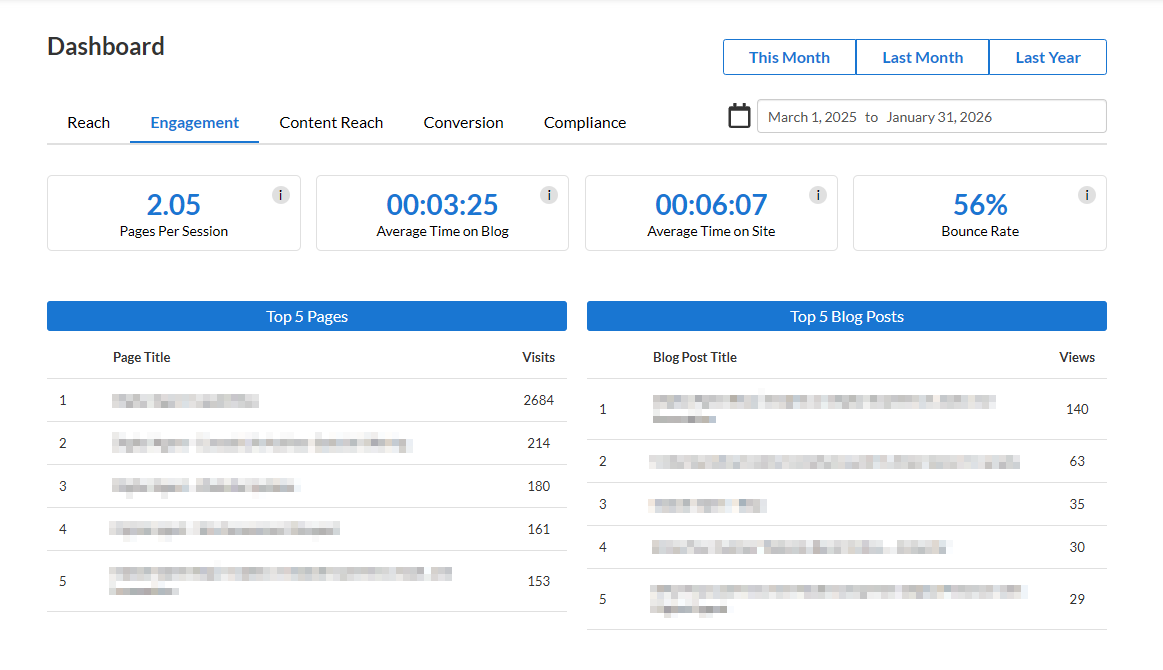
How visitors are interacting, or engaging, with your website.
Engagement includes the following metrics:
- Pages per session: The average number of pages a user visits per session.
- Average time on blog: The average amount of time a user spends reading any one of your blog posts.
- Average time on site: The average amount of time your user spends on your website.
- Bounce Rate: The percentage of visitors who view our website but leave without taking any further actions, such as clicking through to another page, or are engaged on the page for less than 10 seconds.
Top 5 Pages
The five most-visited pages on your website. In many cases, the top two pages will typically be the Home page and the About page.
Top 5 Blog Posts
The blog posts on your website that have received the most views (if your website includes a blog).
Content Reach
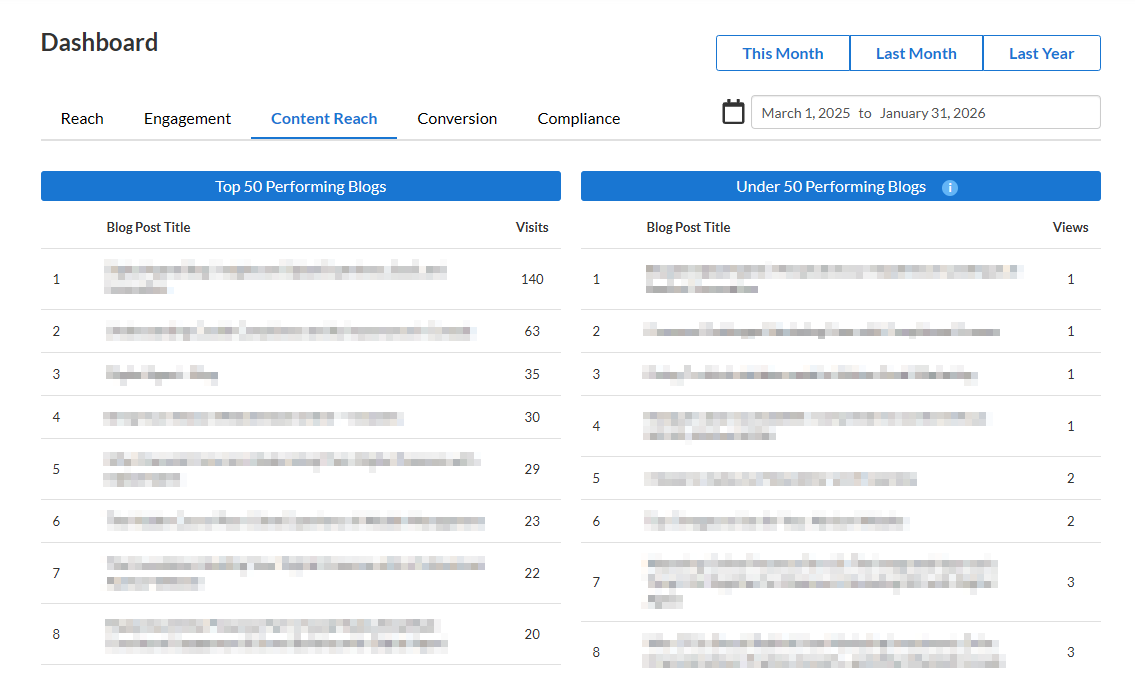
Identifies your highest and lowest performing blog posts.
Only blog posts that have received traffic within the selected date range will display. Posts with no traffic will not display, as no analytics data is recorded for them.
Why is this information important?
This section helps you to identify:
- Blog posts that are performing well
- Posts that are underperforming, but are still receiving some engagement
- Content that may be creating clutter without delivering results
- Topics to consider when creating future content
Blog posts that receive little to no traffic can distort your average metrics and skew results. Since search engines prioritize quality over quantity, poorly performing posts can negatively impact your SEO performance.
For this reason, it's recommended to regularly audit your content and consider removing, updating, or republishing posts that are not providing value to you or your audience.
⚠️ Important:
Before deleting any blog posts, consider if your content:
- Receives seasonal traffic
- Targets important keywords for your niche
- Contain backlinks from other sites
- Is linked internally or externally
Conversion
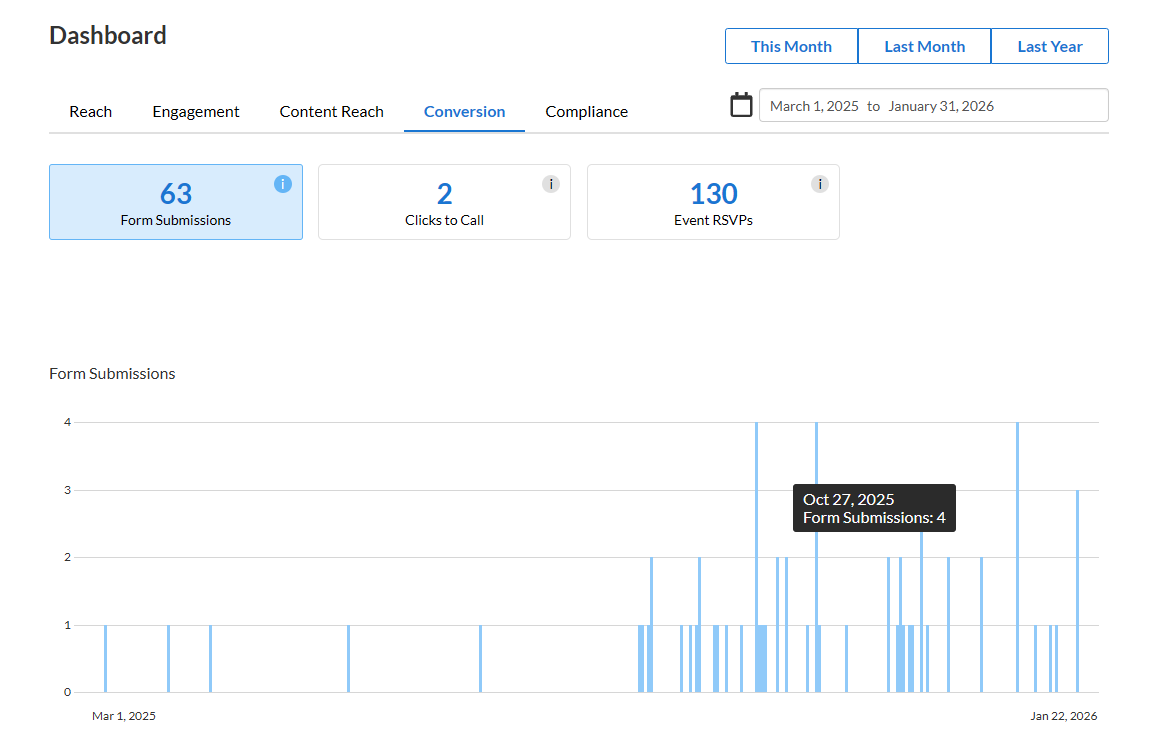
Tracks the number of times a user takes a direct action on your website.
Types of actions tracked:
- Form Submission: Tracks the total number of Forms that were submitted through your website, using the Forms widget.
- Clicks to Calls: The number of times a user has clicked on a phone number on your website.
- Event RSVPs: How many users have RSVP’d to an event hosted on your site, using the Event widget.
Selecting Form Submission, Clicks to Calls, or Event RSVPs updates the graph to display that information.
Compliance
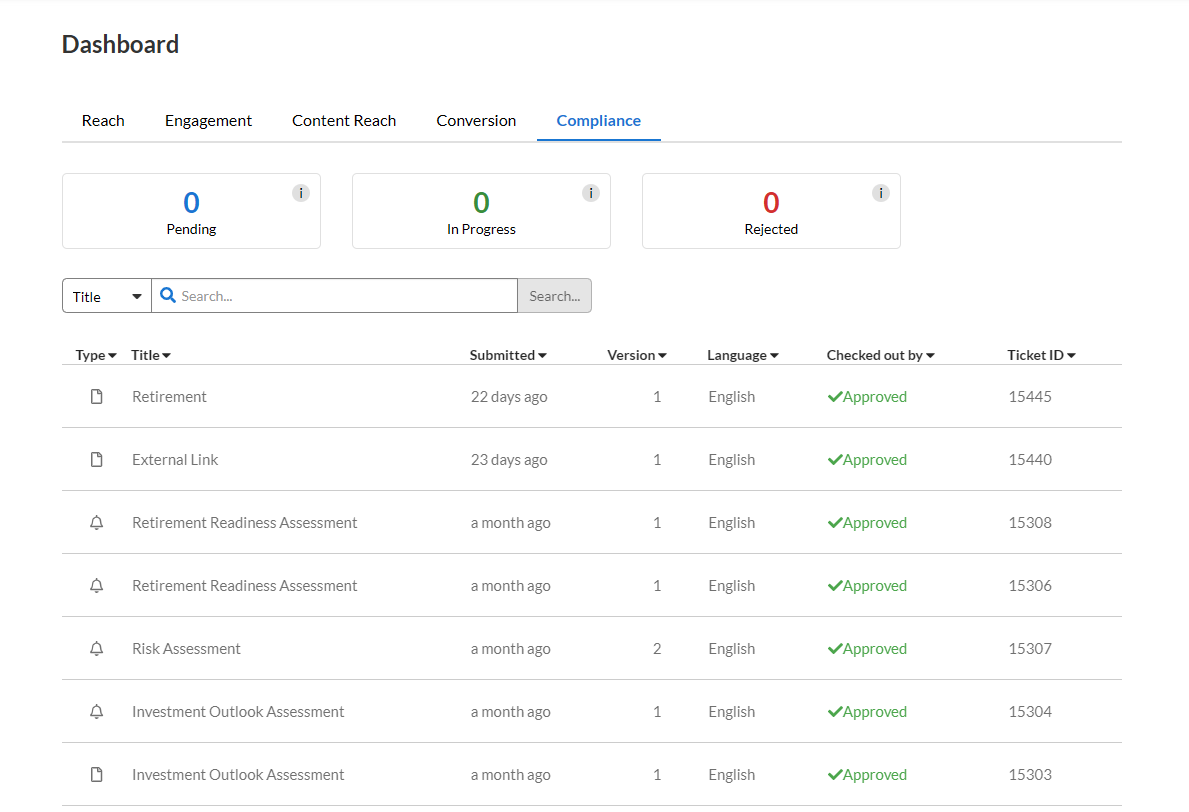
Unlike the other Dashboard tabs, Compliance does not display user metrics. Instead, it shows the items you have submitted to Compliance for review and their current status.
Note: If your site does not use Compliance, this section will display a historical overview of published content.
Searching for items:
Use the Search field to find an item by Title or Ticket ID.
- Type your search term and click the Search… button.
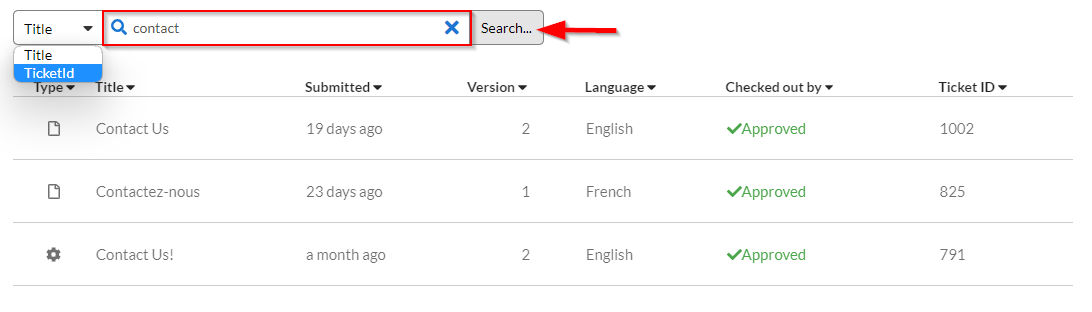
To clear your search, click the X in the search field and click Search… again to show all items.

Organizing the list:
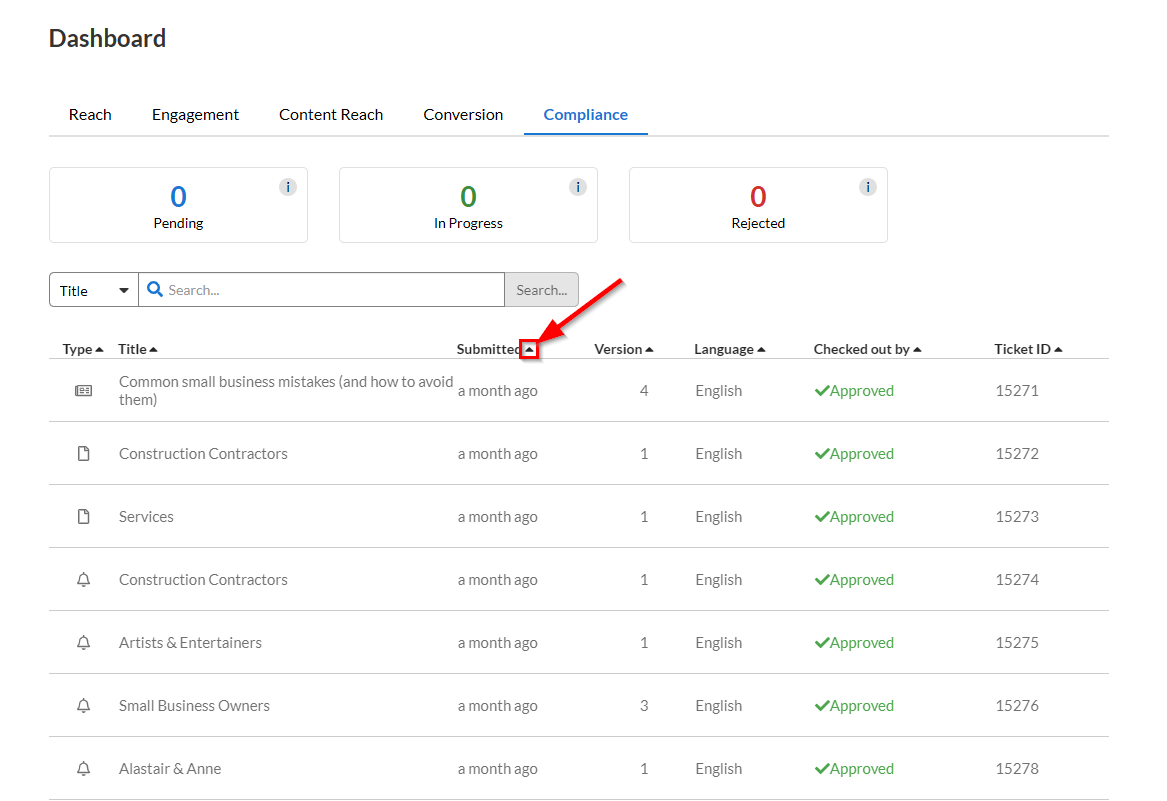
- Click the arrows next to the Category headers to sort items in Ascending or Descending order.
Was this article helpful?
That’s Great!
Thank you for your feedback
Sorry! We couldn't be helpful
Thank you for your feedback
Feedback sent
We appreciate your effort and will try to fix the article