TABLE OF CONTENTS
Logging In
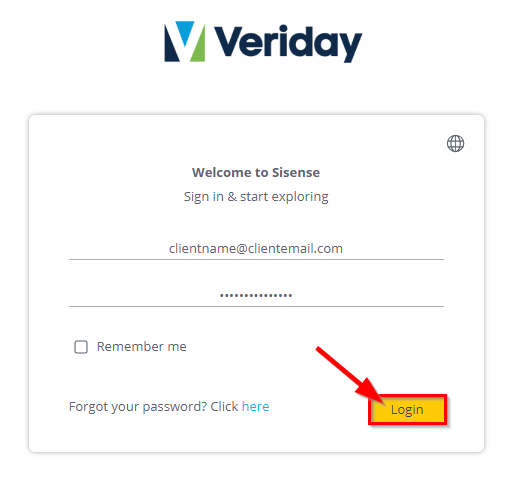
Navigate to the Enterprise Dashboard login page and enter your username/email and password, then click Login.
Dashboard Home
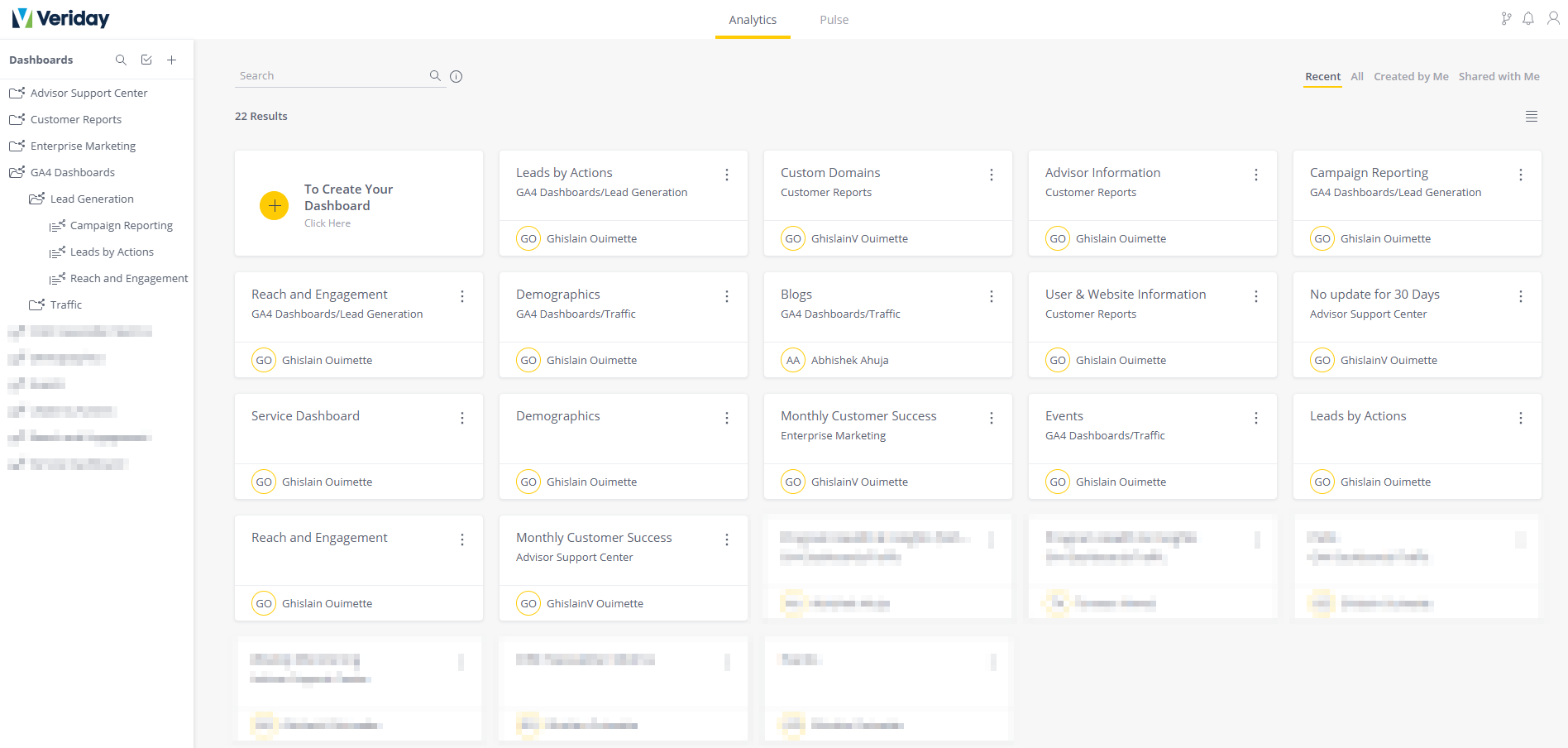
After logging in, you’ll see all dashboards available to your account.
The left sidebar contains folders for different dashboard categories:
- Customer Reports – Environment and account-related data such as users, websites, and domains.
- GA4 Dashboards – Website analytics including traffic, engagement, and lead generation metrics.
Select any dashboard from the sidebar to open its analytics view.
⚠️ Important: Enterprise Dashboard analytics are updated with a 24-hour delay. Data from the current day will not appear in the dashboard until the following day.
Dashboard Categories
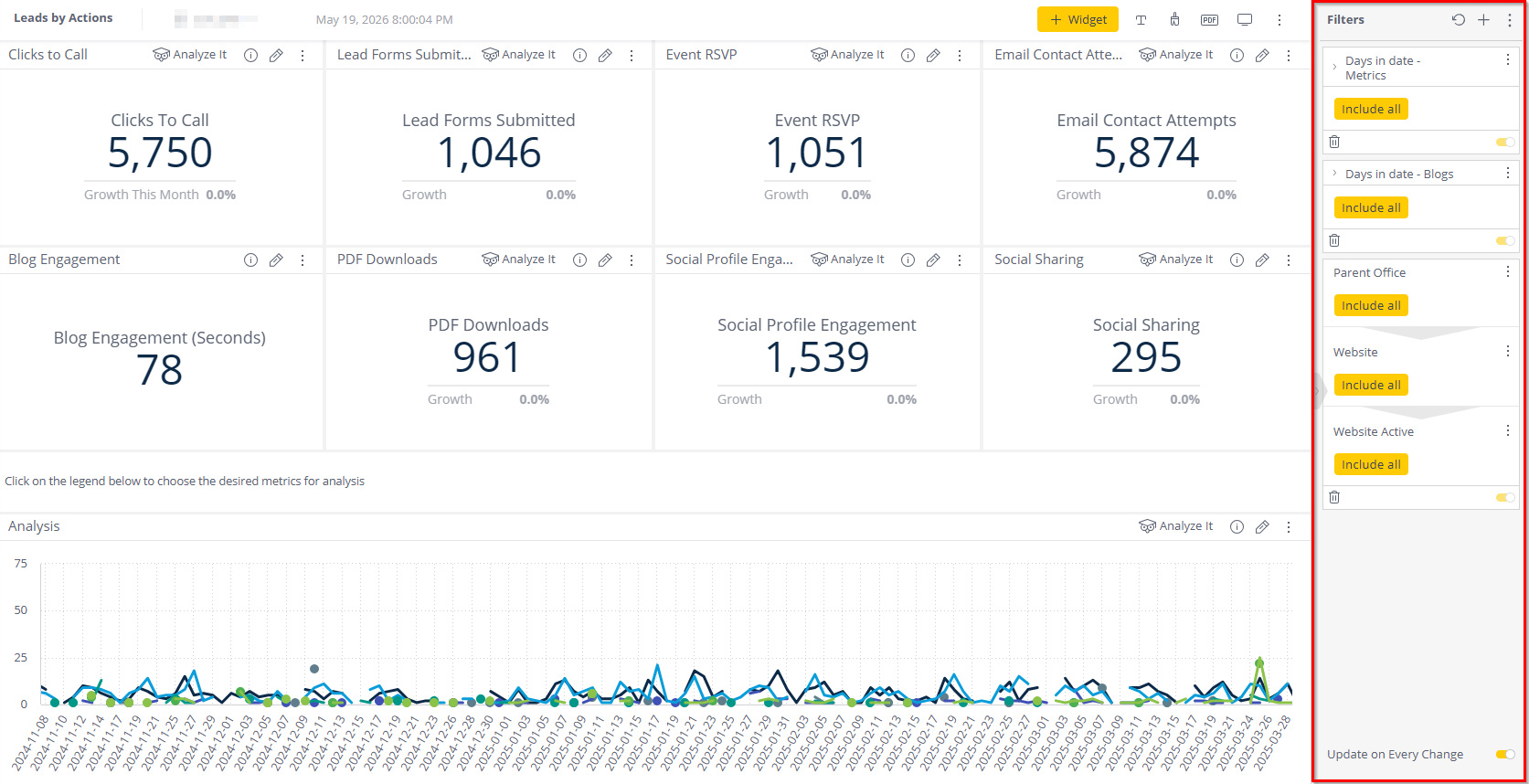
Lead Generation
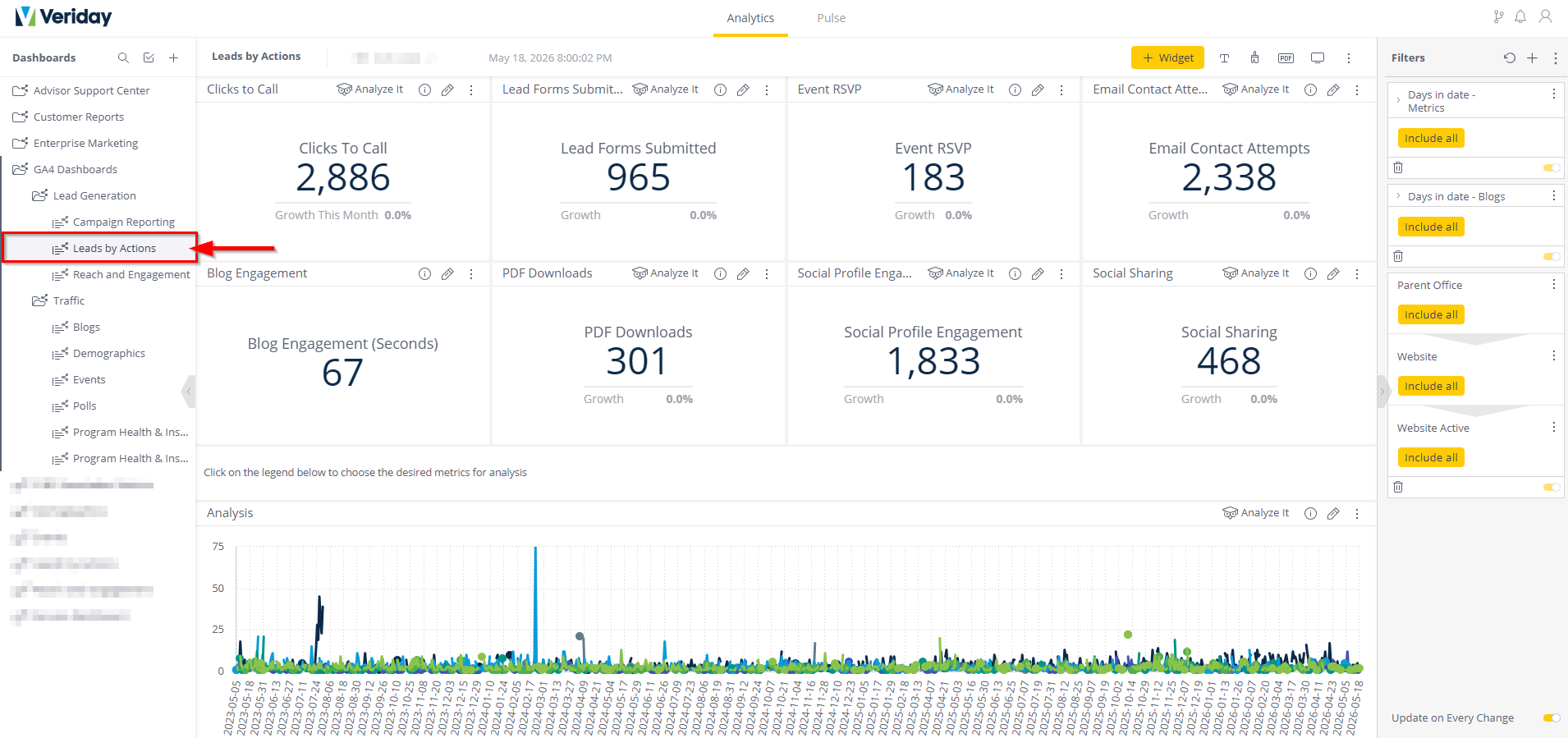
Lead Generation tracks actions that users take on advisor websites.
Metrics
- Clicks to Call – Number of clicks on call-to-action buttons
- Lead Forms Submitted – Forms submitted through the Forms widget
- Event RSVPs – Responses submitted through the Events widget
- Email Contact Attempts – Emails initiated from the site
- Blog Engagement – Time spent reading blog pages
- PDF Downloads – PDF document views/downloads
- Social Profile Engagement – Visits through social media engagement
- Social Sharing – Number of social shares
Tip: Hover over the ? icon beside any metric to view additional details.
Analysis Graphs
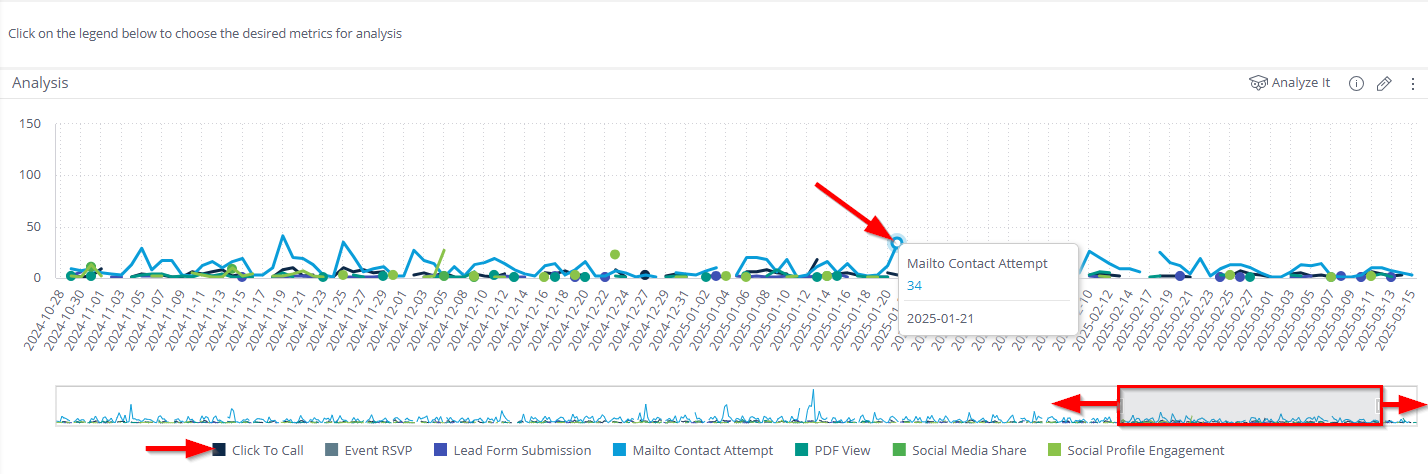
Most dashboards include interactive graphs that allow you to:
- Toggle categories on or off
- Hover over data points for detailed values
- Use the time slider to focus on a specific date range
Tip: Moving Widgets
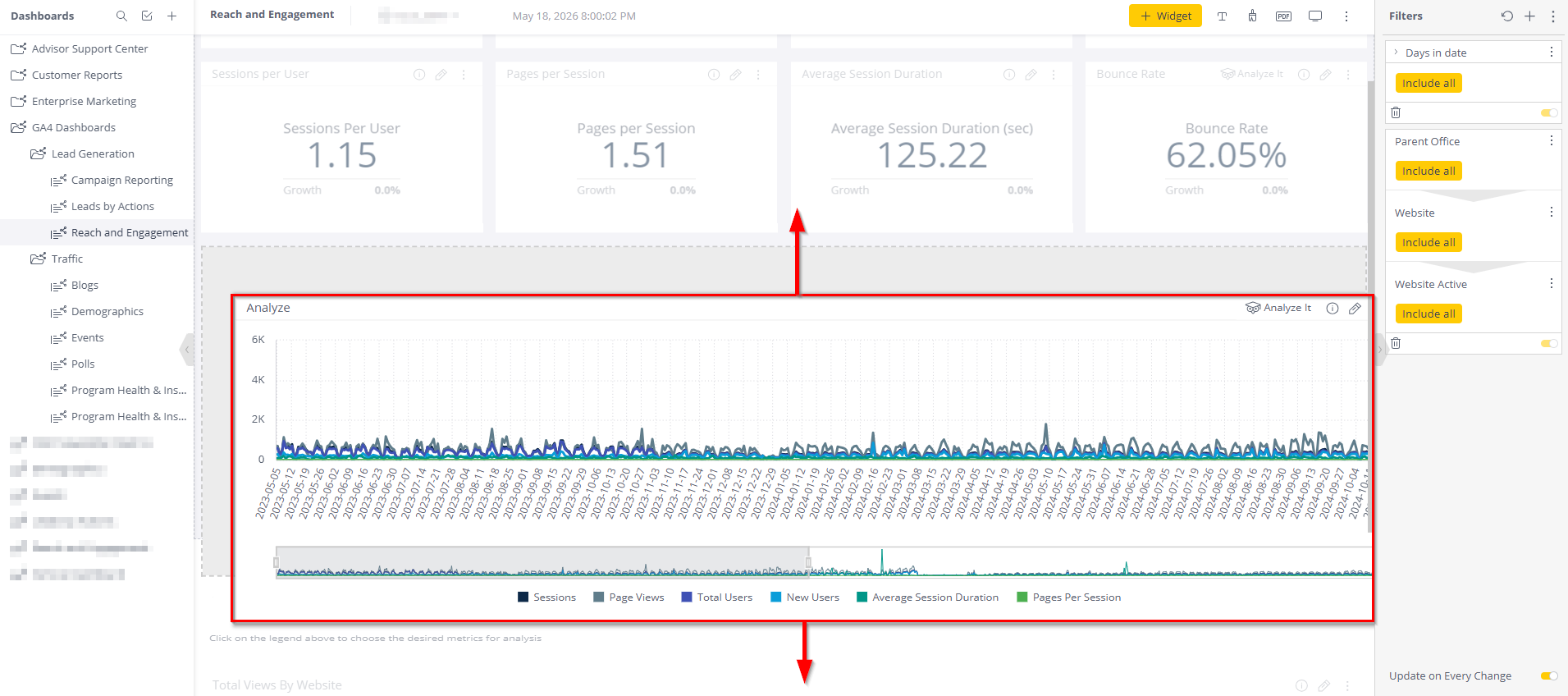
You may customize your view on any dashboard by clicking and dragging a widget on the page.
Reach and Engagement
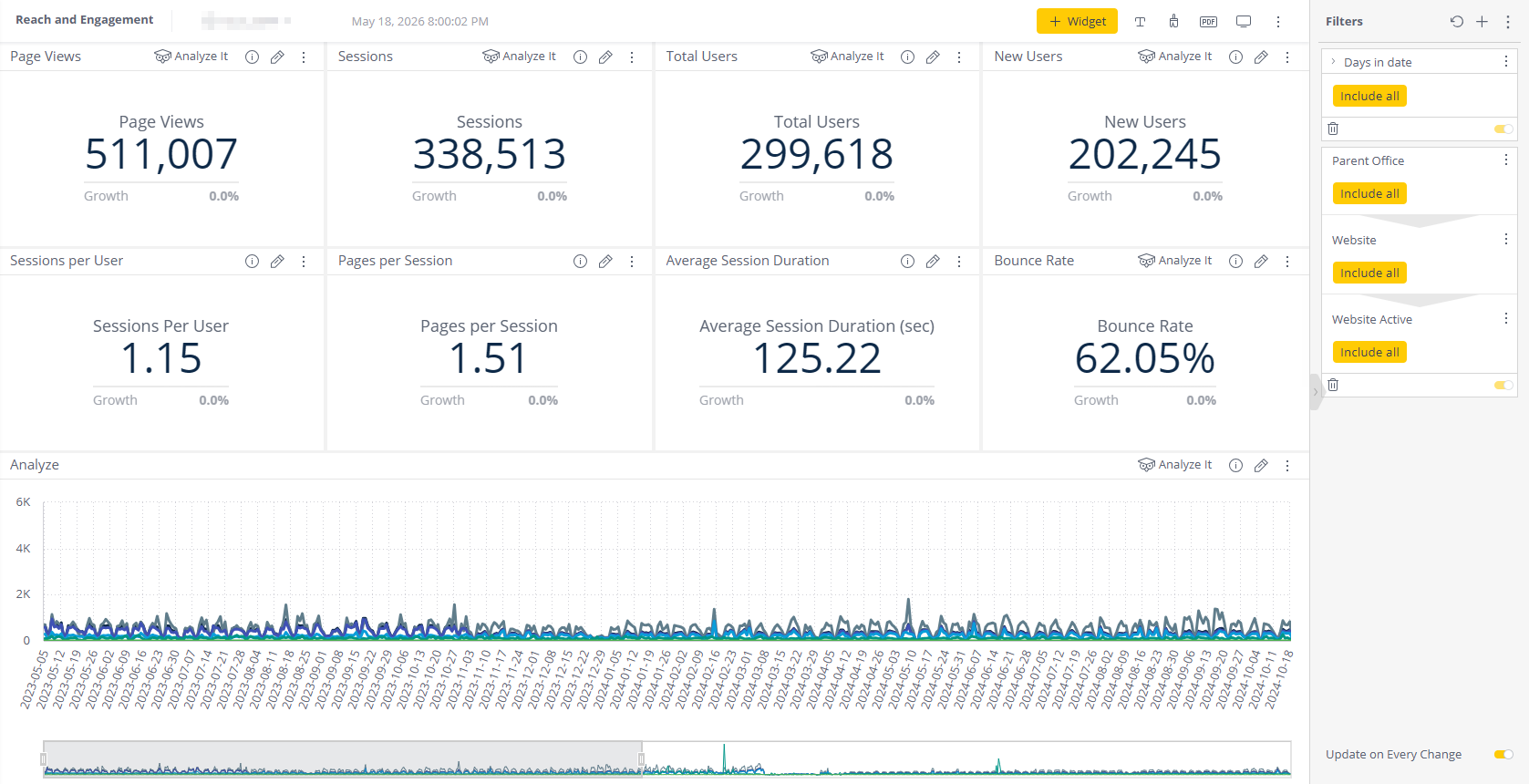
This section tracks passive website activity and visitor behaviour.
Metrics
- Page Views – Total page views
- Sessions – Total visits
- Users – Unique visitors
- New Users – First-time visitors
- Sessions per User – Average visits per user
- Pages per Session – Average pages viewed per visit
- Average Session Duration – Average visit length
- Bounce Rate – Percentage of visitors who leave after viewing one page with little or no interaction
Traffic Dashboards
Traffic dashboards provide deeper insight into visitor activity and content performance.
Blogs
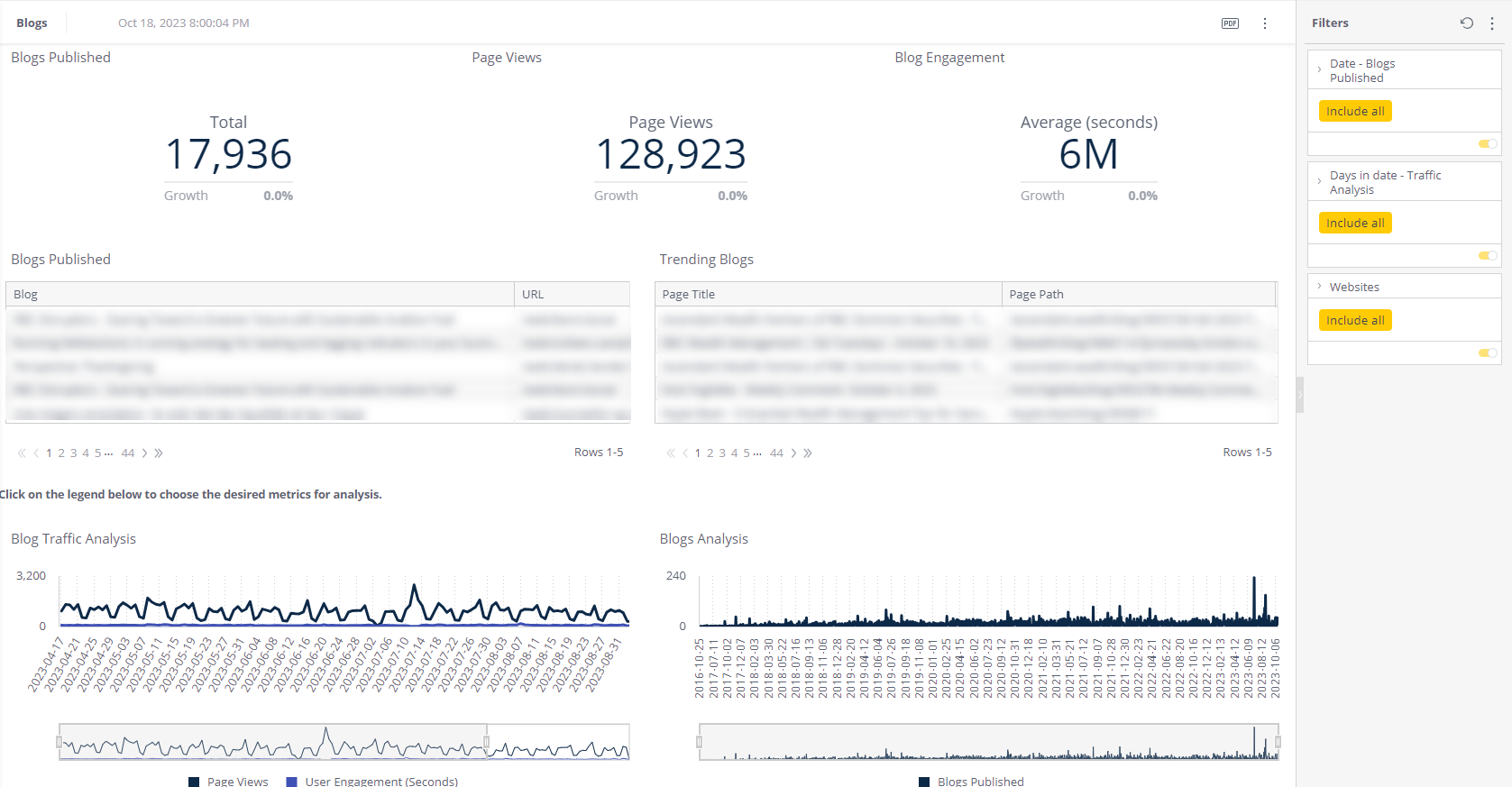
Key Metrics
- Blogs Published – Total blogs published
- Page Views – Blog page views
- Blog Engagement – Average time spent reading blogs
 Additional Views
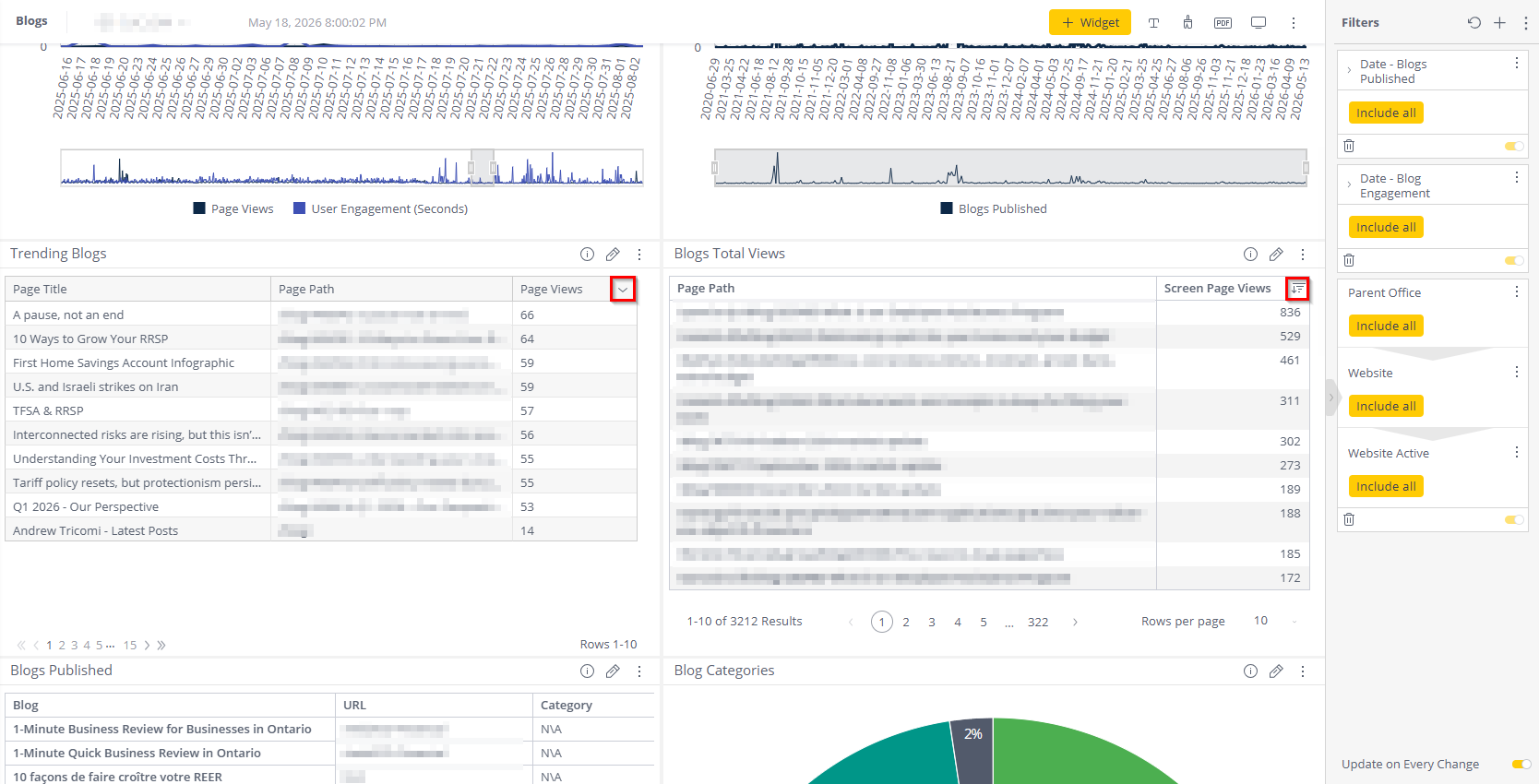
- Trending Blogs – Top-performing blogs over the last two weeks
- Blogs Total Views – Views per blog URL
- Blogs Views by Day – Daily blog traffic
Most lists can be sorted ascending or descending using the column arrows.
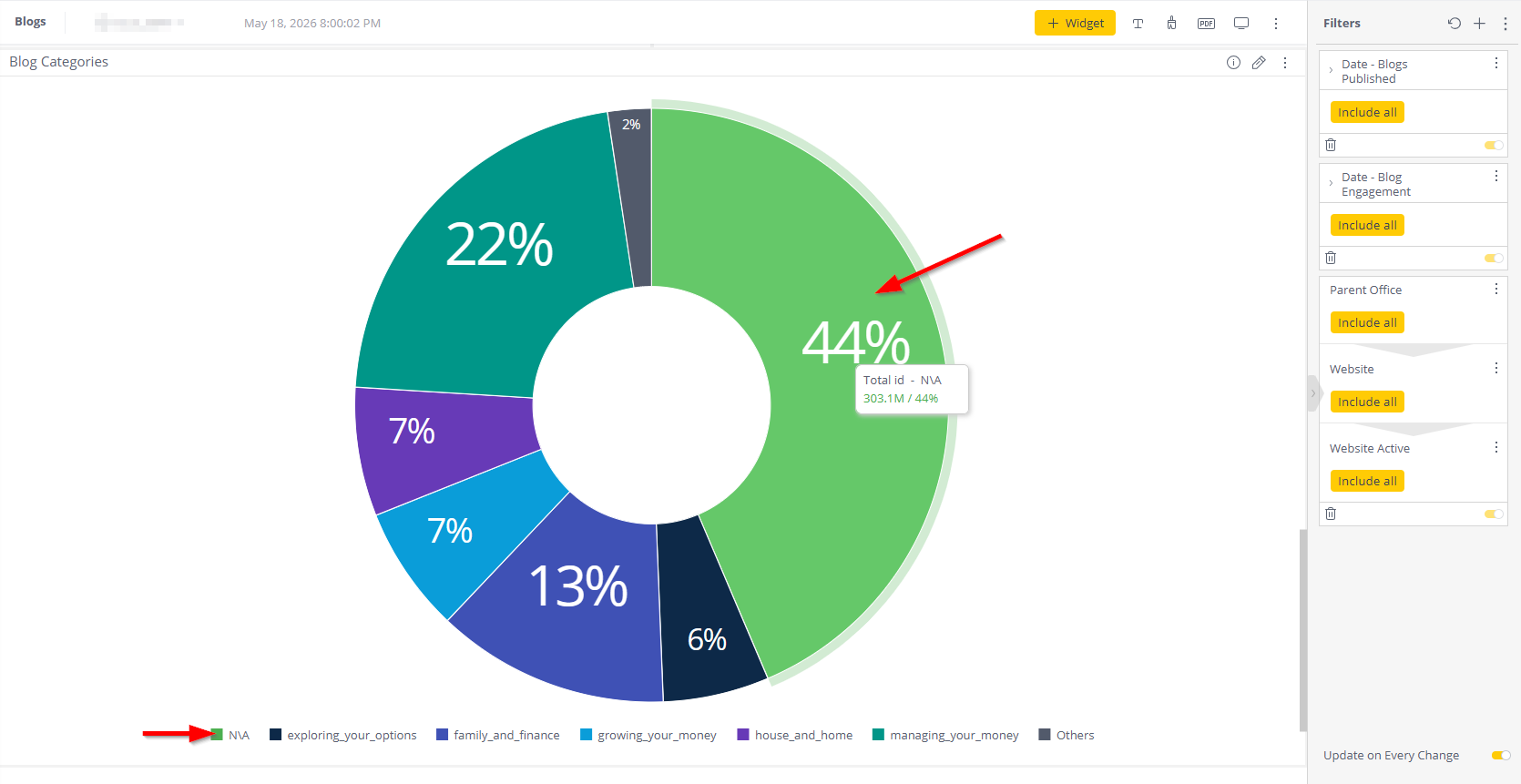
Blog Categories
Displays a pie chart showing:
- Blog category distribution
- Percentage of views by category
You can:
- Click a category to isolate it
- Toggle categories on or off
- Hover over chart sections for more details
Demographics
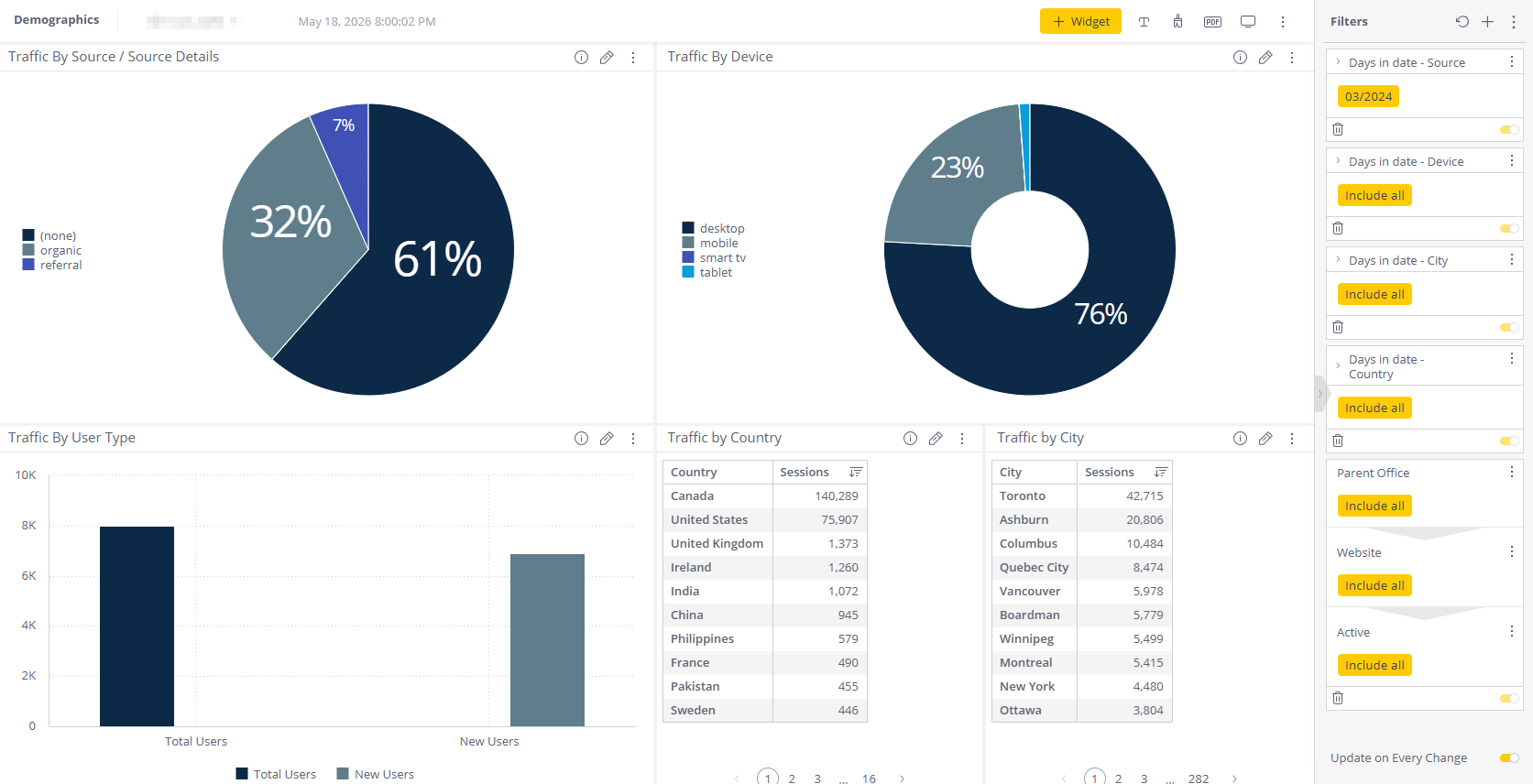
Demographics dashboards show where visitors come from and how they access advisor websites.
Available Reports
- Traffic by Source – Organic, direct, referral, social, etc.
- Traffic by Device – Desktop, mobile, tablet
- Traffic by User Type – New vs returning visitors
- Traffic by Country
- Traffic by City
Charts are interactive and allow filtering directly from the graph.
Events Dashboard
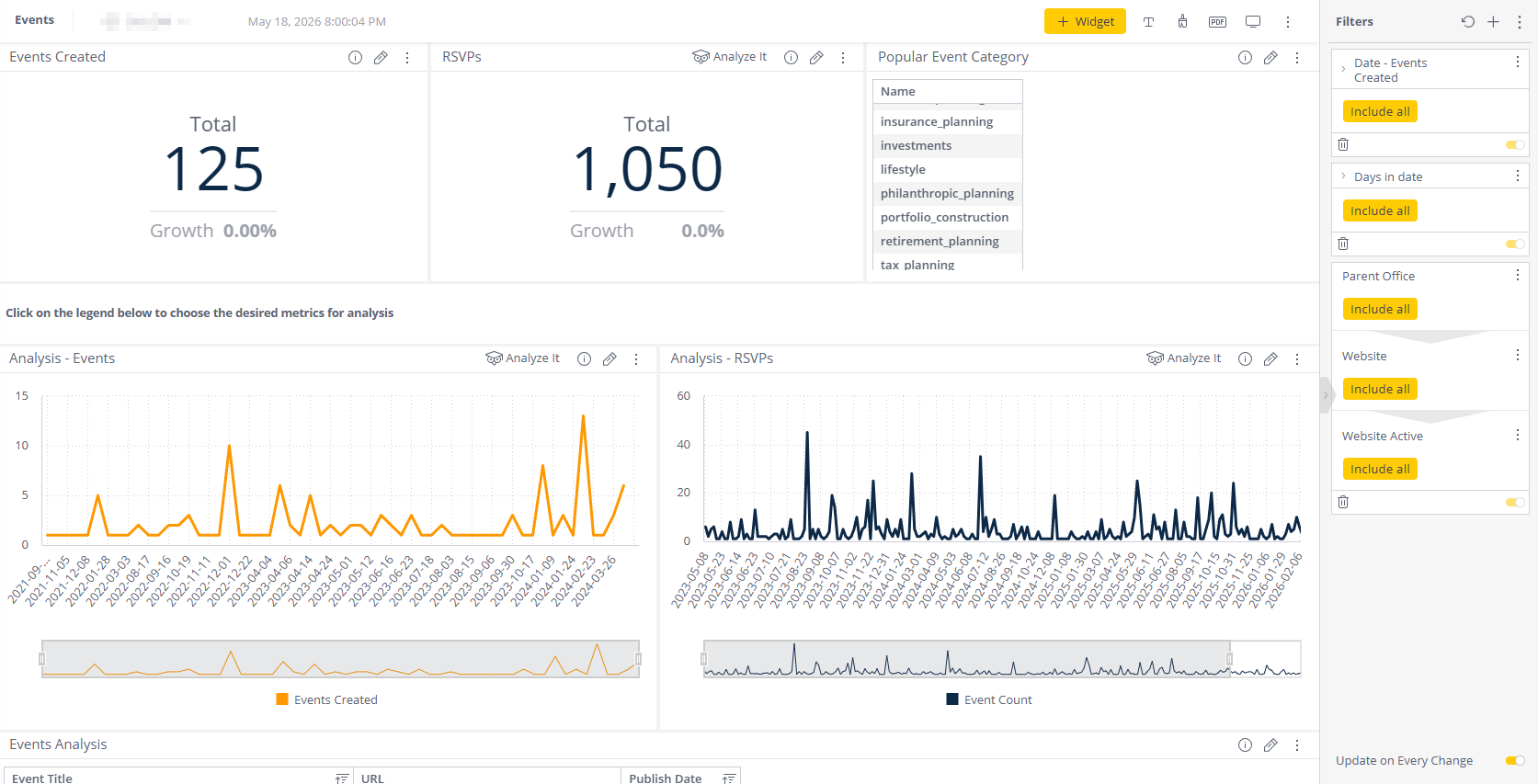
Tracks events created using the Events widget.
Metrics
- Events Created
- RSVPs
- Event Categories
Includes graphs and event lists for additional analysis.
Polls Dashboard
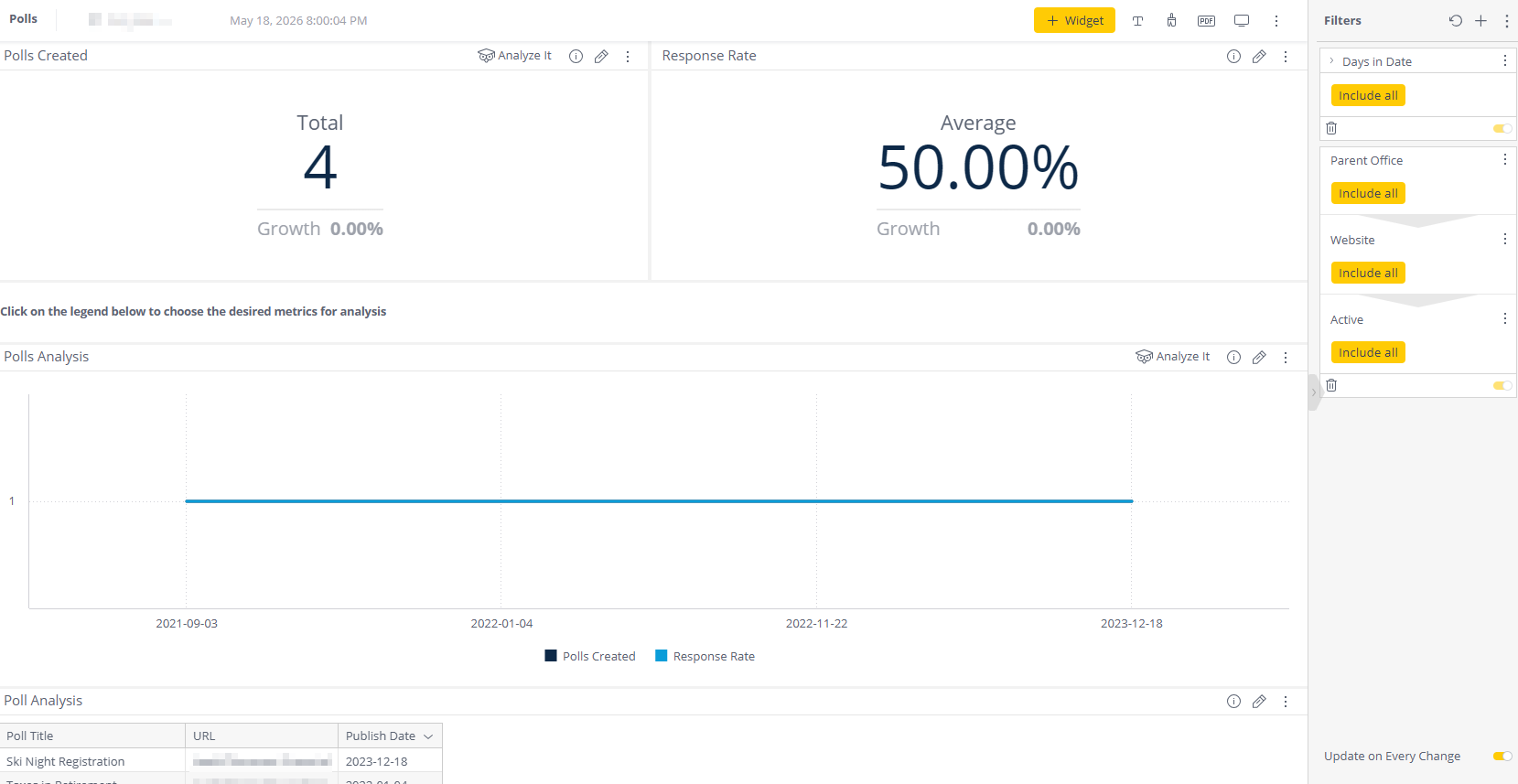
Note: This dashboard is only visible if Polls are enabled in your environment.
Metrics
- Polls Created
- Response Rate
Includes:
- Poll analysis graphs
- Published poll lists with URLs and publish dates
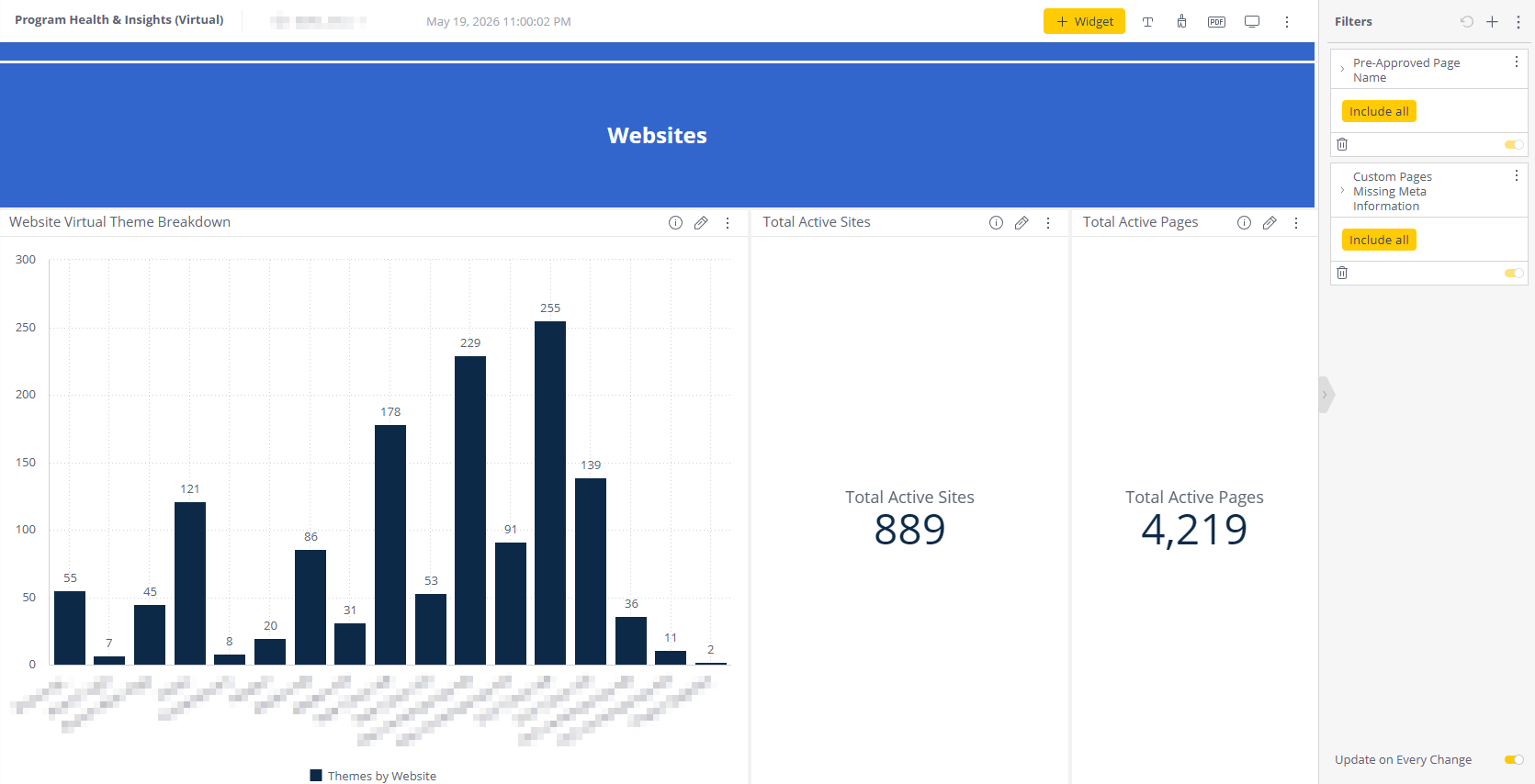
Program Health & Insights
This section reports on platform-wide statistics and configurations.
Metrics
- Virtual Theme Breakdown
- Total Active Sites
- Total Active Pages
- Page Types
- Popular Page Names
- Pre-Approved Pages
- User Accounts
- Office Types
Search Engine Optimization
- Pages Missing Meta Information
- List of pages missing Meta Description
- List of pages missing SEO Title
Filters
Each dashboard includes filters in the right sidebar to customize the displayed data.
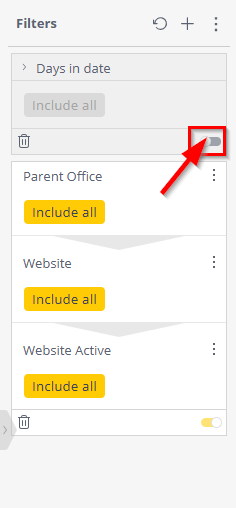
Enable/Disable Filters
Use the toggle slider in the bottom-right corner to turn filters on or off.
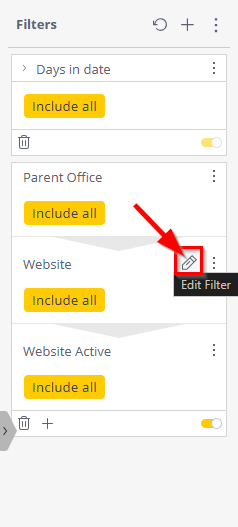
Edit Filters
Click the pencil icon in the filter section header to modify filters.
Editing Your Filters
Your filters may be further defined within the Edit Filter panel. Your options will change depending on filter you are editing.
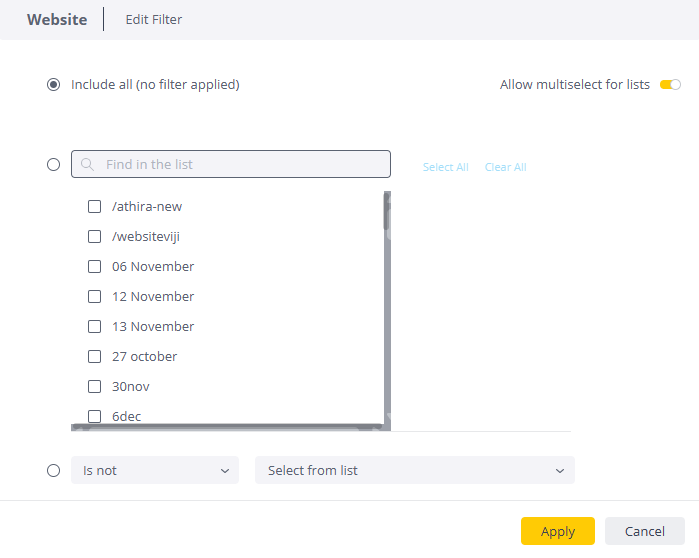
Website Filters
You have the option to:
- Include all (no filter applied)
- Search and select specific sites in the list
- Use "is not" to exclude selected website
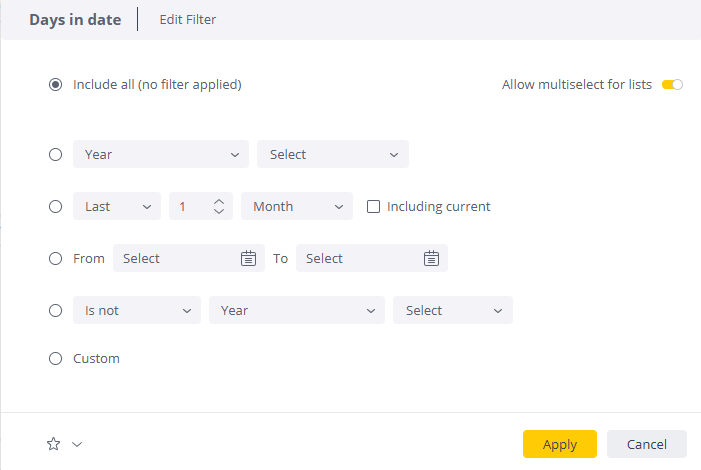
Date Filters
The Days in Date filter allows you to:
- Include all (no filter applied)
- Select a range by:
- Specific Years, Quarter, Month, Week, Day, etc.
- Last X Months
- Custom From and To Dates
- Use "is not" to exclude dates or ranges
- Define a range using a custom JSON query
After configuring your filters and clicking Apply, the dashboard will refresh to display the updated data set.
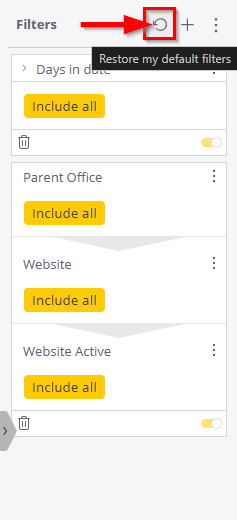
Reset Filters
Click the reset icon (circular arrow) at the top of the Filters section to restore default settings.
Was this article helpful?
That’s Great!
Thank you for your feedback
Sorry! We couldn't be helpful
Thank you for your feedback
Feedback sent
We appreciate your effort and will try to fix the article