How do nameservers work?
By default, your domain's nameservers correspond to your domain registrar—the provider you use to manage your custom domain name. These typically look something like:
- ns1.provider.com
- ns2.provider.com
The nameservers determine where your DNS is hosted, meaning DNS records (such as A records, MX records, etc.) are managed wherever your nameservers are pointing.
You can update your nameservers to point to a different provider (e.g., Cloudflare) if you’d prefer to manage your DNS outside of your registrar. This allows you to keep your domain registered with your original provider while delegating DNS management to another service.
Step 1: Sign in to your registrar
To access your nameservers, you must first sign in to your registrar/DNS provider account. Common registrars include:
Don't know your registrar?
If you are uncertain which registrar your custom domain is hosted on, you can use Whois Domain Lookup to confirm.
If you are unable to access your registrar, please reach out to your registrar's support team. We are unable to assist you in accessing your registrar.
Step 2: Locate your DNS settings
- Once you've logged in to your registrar, navigate to the list of domains that you own.
- Select the domain name you need to update the nameservers for and edit/manage that domain.
- Locate the Nameservers/DNS Server Settings section for that domain name.
For additional assistance in locating your nameservers, please see your registrar's official documentation on updating nameservers:
GoDaddy: https://www.godaddy.com/en-ca/help/edit-my-domain-nameservers-664
eNom: https://support.enom.com/support/solutions/articles/201000065375-nameservers-ns-
HostGator: https://www.hostgator.com/help/article/what-are-my-name-servers
If the registrar is not in this list, please refer to your registrar's official documentation on updating nameservers.
Step 3: Update your nameservers
1. If your domain is currently using your registrar's default nameservers, update your settings to allow the use of custom nameservers.
Note: Provided screenshot is for reference only and your registrar's settings may differ. Please refer to your registrar's official documentation.
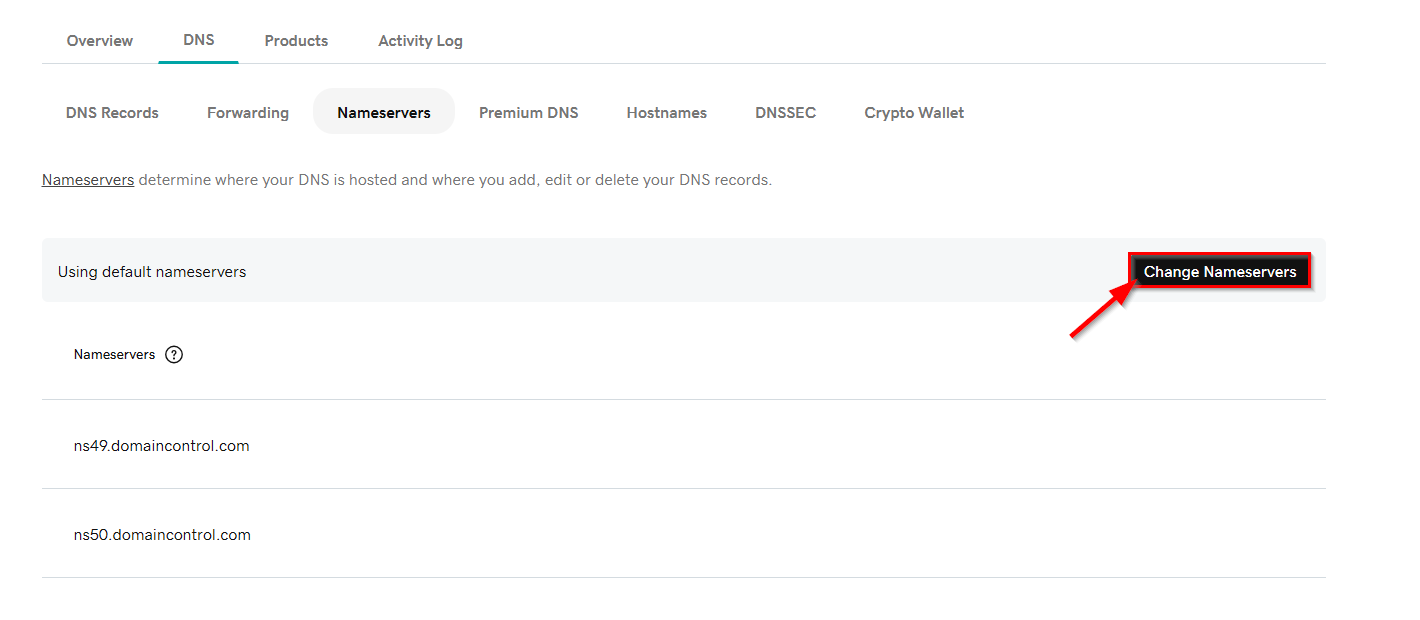
2. Replace your existing nameservers with those provided to you by the Digital Agent team.
Step 4: Confirm your changes
1. Once your nameservers have been updated, inform the DA team.
2. The DA team will confirm once the domain name has been successfully added.
Note: Once updated, DNS changes can take up to 24–48 hours to fully propagate, regardless of the TTL (Time to Live) although they may take effect sooner.
Was this article helpful?
That’s Great!
Thank you for your feedback
Sorry! We couldn't be helpful
Thank you for your feedback
Feedback sent
We appreciate your effort and will try to fix the article