TABLE OF CONTENTS
- Step 1: Add/Edit DNS Records
- Step 2: Add the Custom Domain URL to DA
- Step 3: Create a Site Launch Ticket
Step 1: Add/Edit DNS Records
For instructions on how to configure the DNS records in your registrar, please see: Adding or Editing DNS Records for a Custom URL.
⚠️Important: Your custom URL may be launched while your site is still offline, however, the site hub musthave been created and configured within DA.
We can not launch a custom URL if there is no hub to associate it with.
Step 2: Add the Custom Domain URL to DA
1. From the Digital Workspace, navigate to Settings. 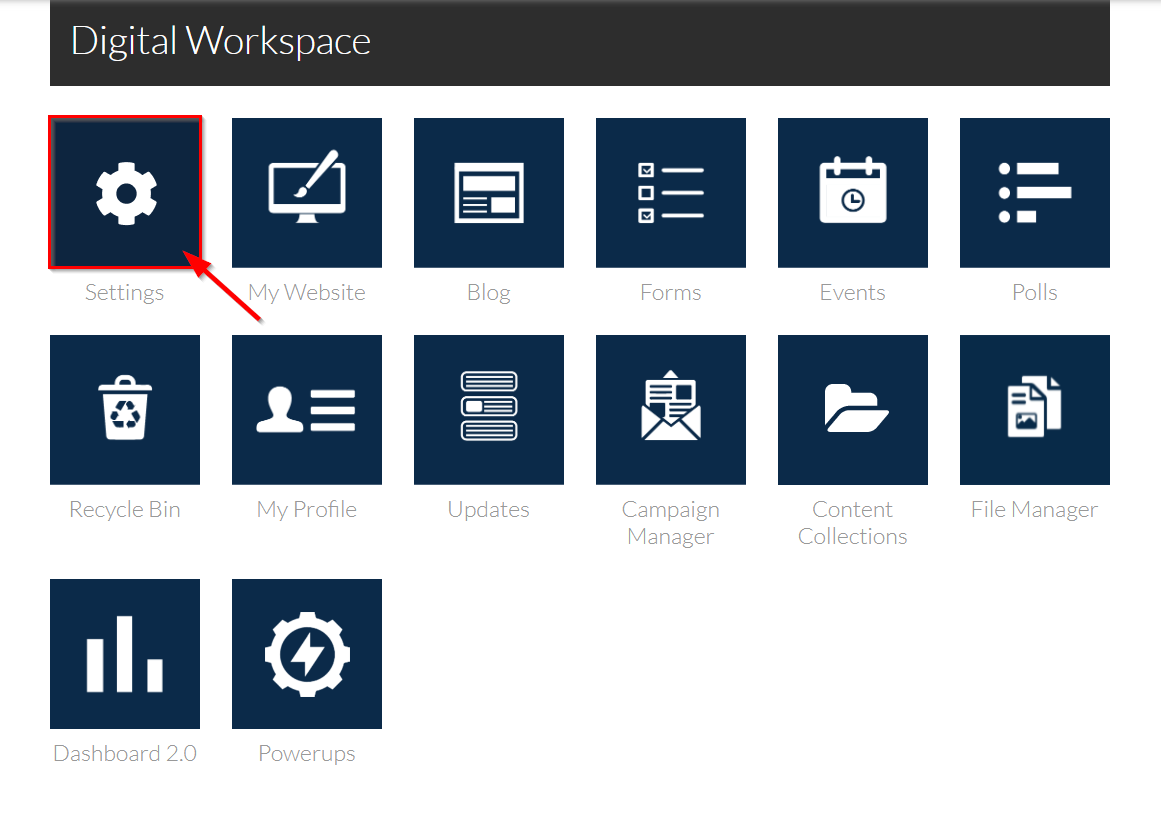
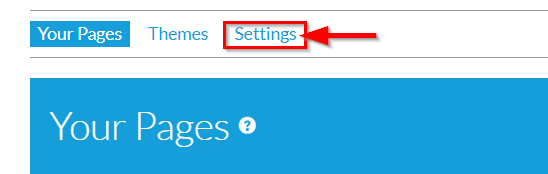
2. From Your Pages, select the Settings tab in the top header.
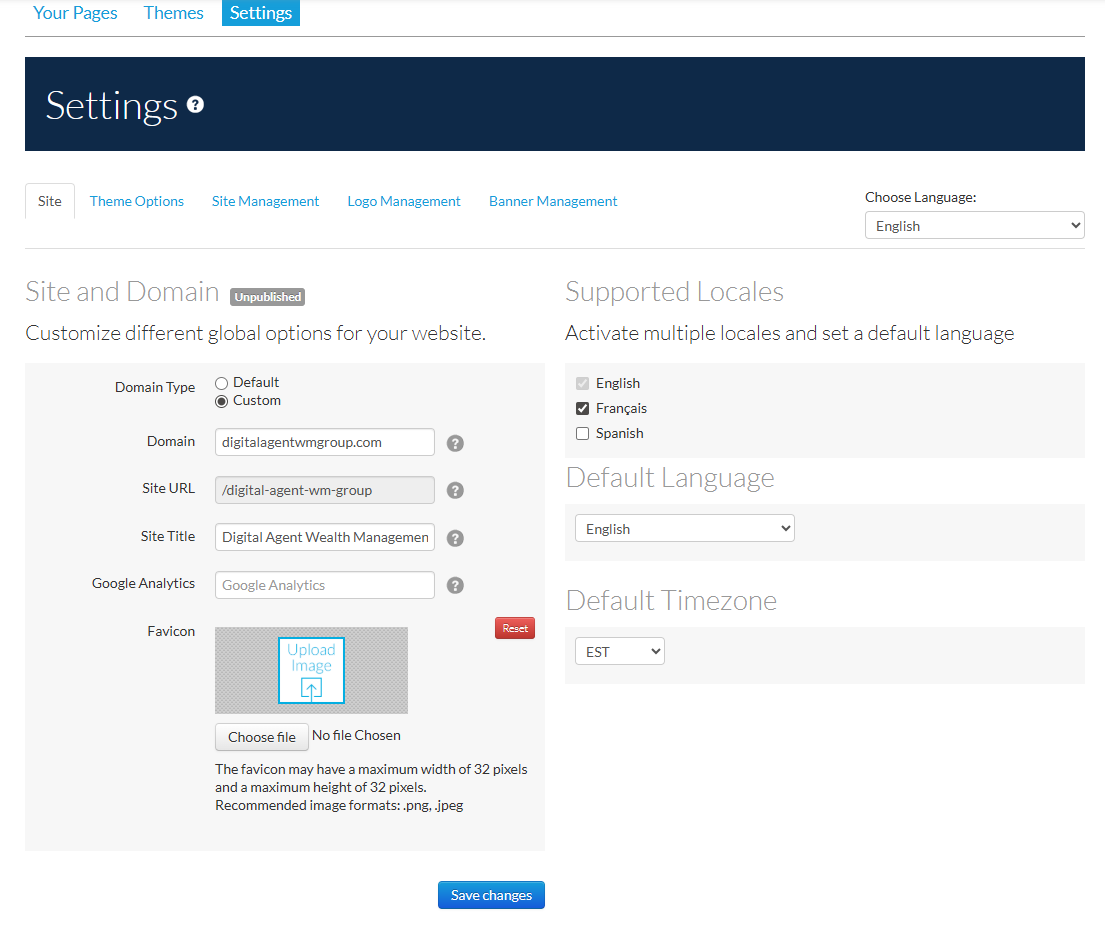
3. This opens the Site page, where you can manage global site configurations.
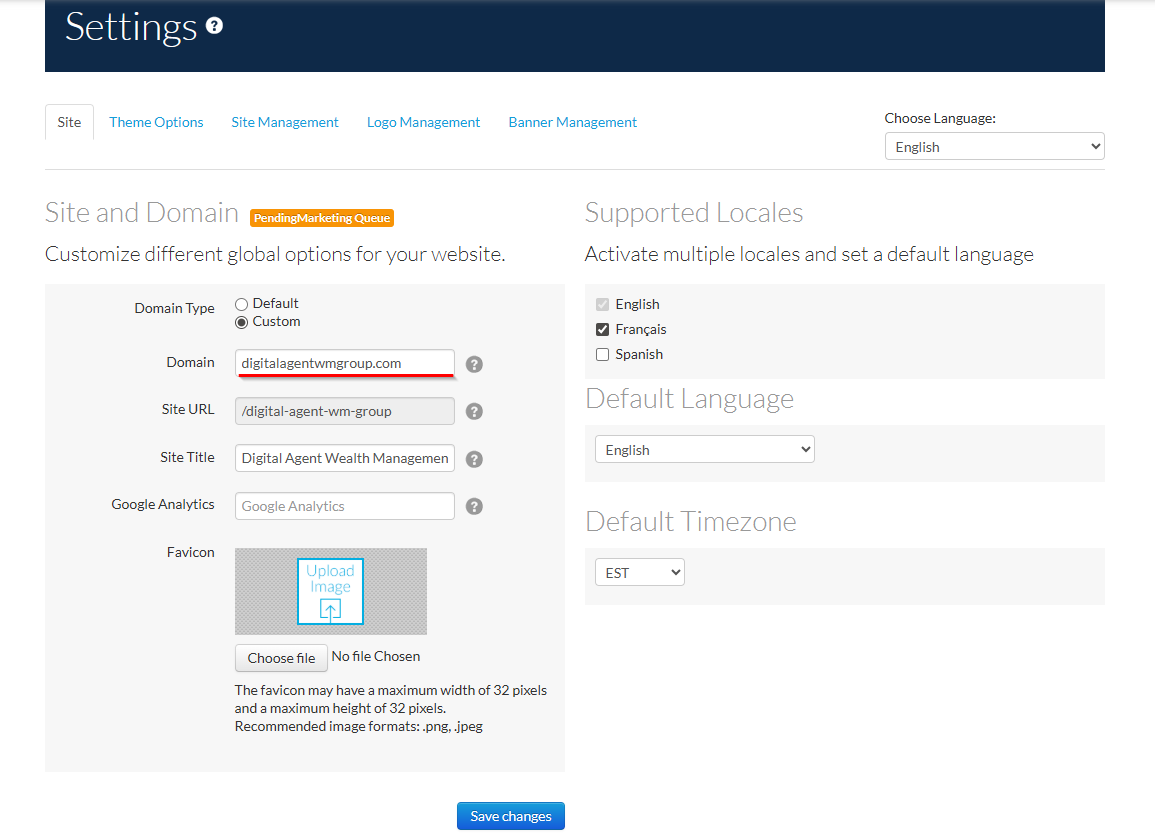
4. Change your Domain Type to Custom.
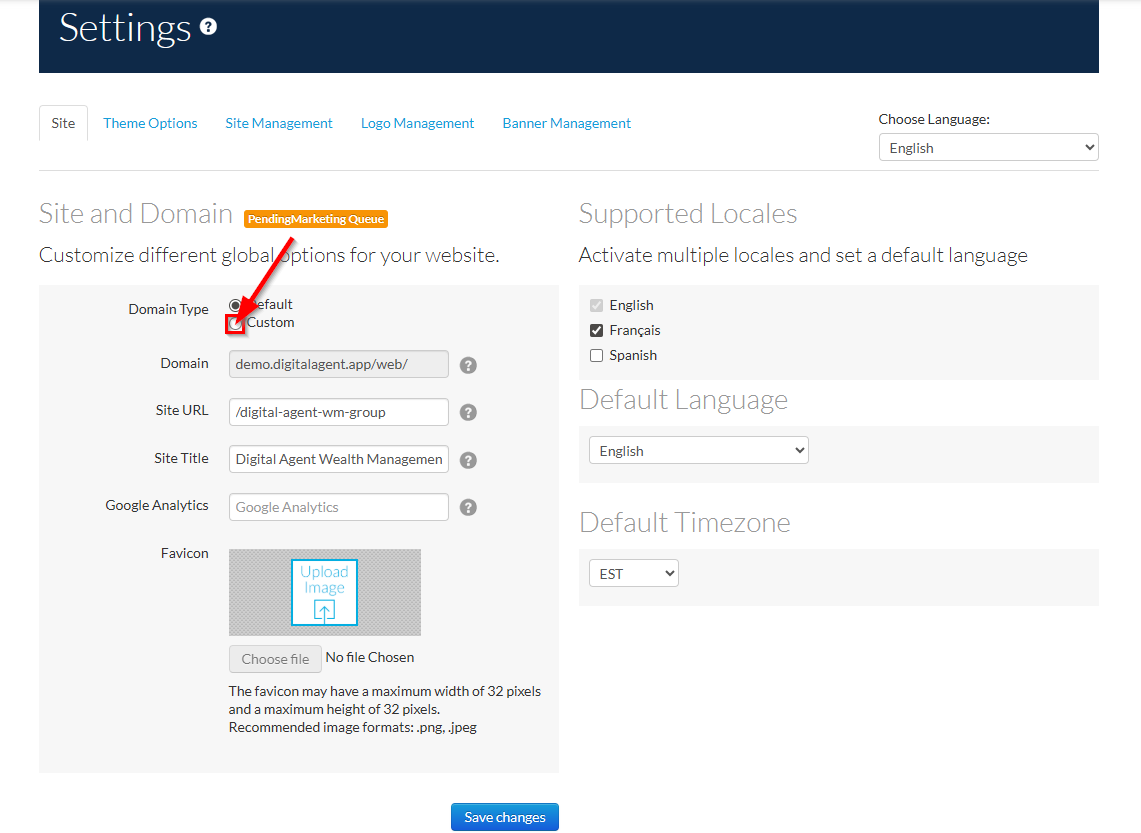
5. Add your custom domain name to the Domain field.
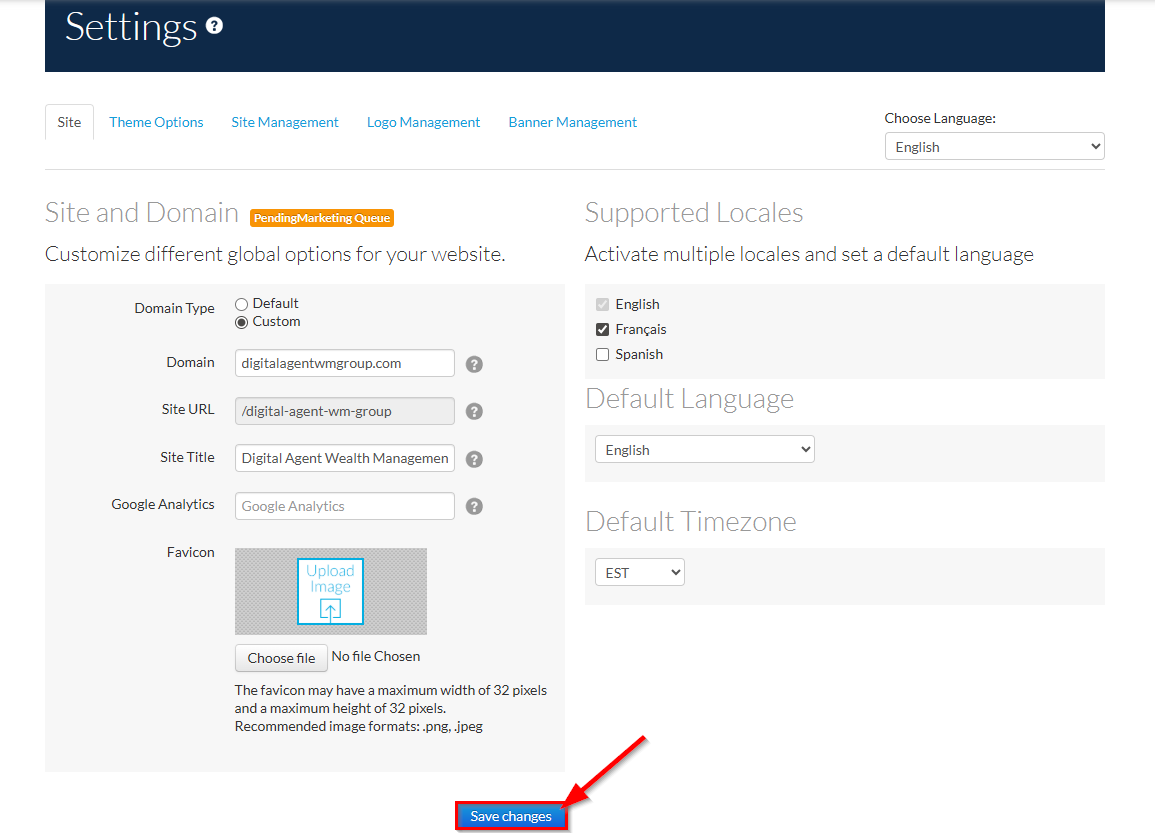
6. When finished, click Save changes to submit your changes to Compliance.
Step 3: Create a Site Launch Ticket
After your DNS records have been configured in your registrar:
- Submit a new Domain-Related Request ticket in the Digital Agent Support Portal.
- Set the Domain Request Type to Site Launch.
- Any secondary URLs you wish to redirect may be included in the Additional domain redirects field.
- Once received, the Digital Agent Team will escalate your Site Launch request to add the primary custom URL to our database.
Was this article helpful?
That’s Great!
Thank you for your feedback
Sorry! We couldn't be helpful
Thank you for your feedback
Feedback sent
We appreciate your effort and will try to fix the article