TABLE OF CONTENTS
- Accessing Compliance History
- Setting a Time Frame
- Viewing Historical Submissions
- Filtering Your View
- Download Compliance History
Accessing Compliance History
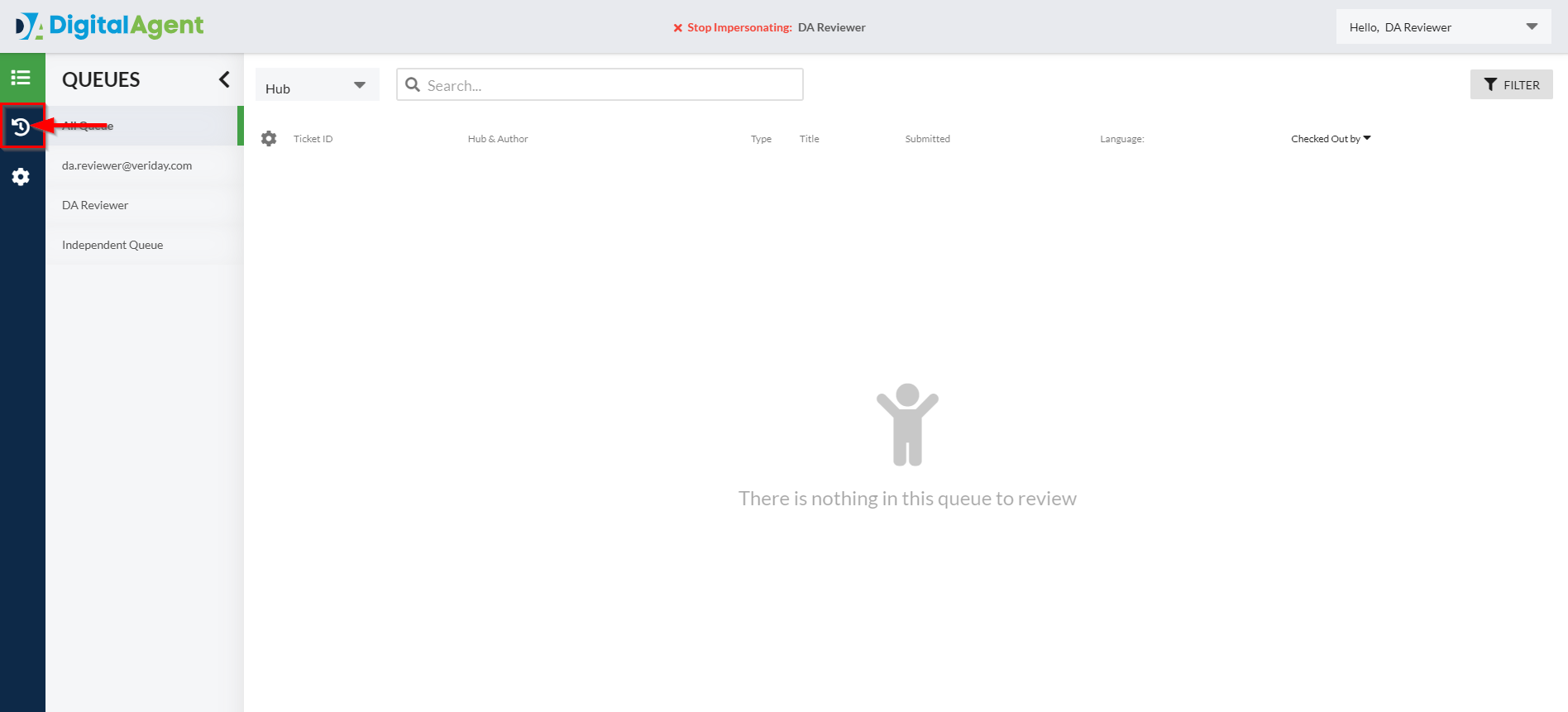
1. While viewing Compliance HQ, select the History section in the sidebar.
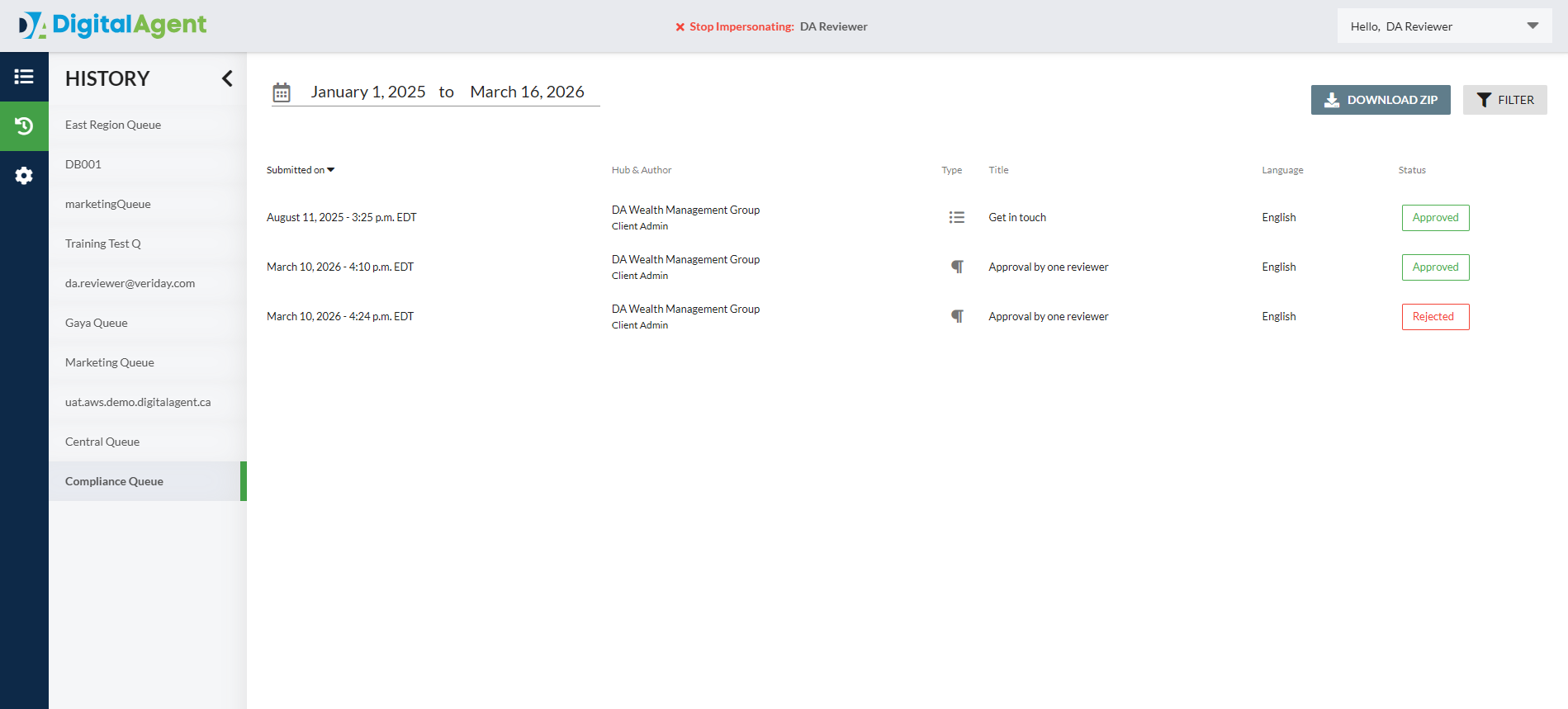
2. From the History section, select a Queue in the sidebar and view all approved and rejected submissions associated with that queue.
Setting a Time Frame
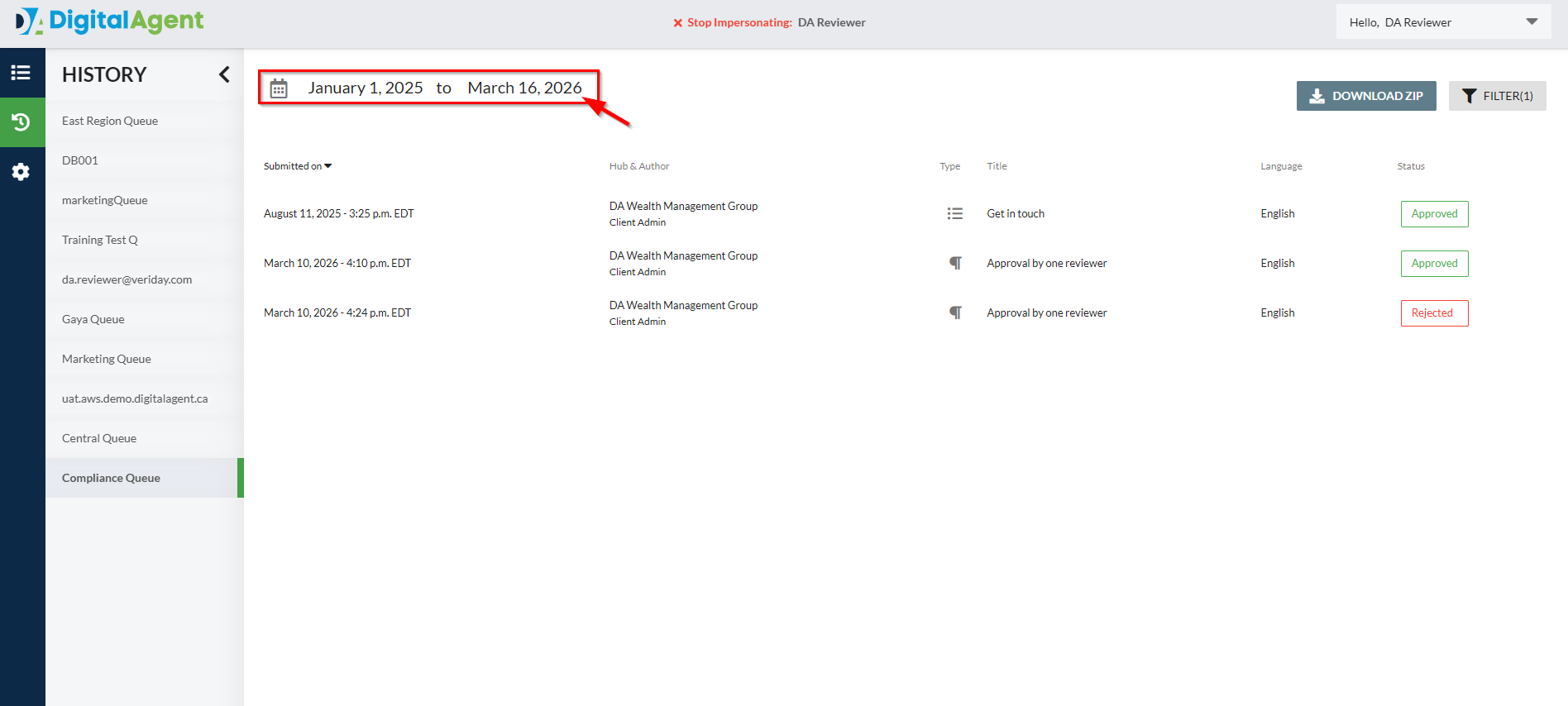
1. Select the Date Range in the top-left corner to adjust the time frame you'd like to view submissions for.
2. Use the arrows to move forward or backward by one month in the calendar. Alternatively, click the month name to view and select a specific month within a year.
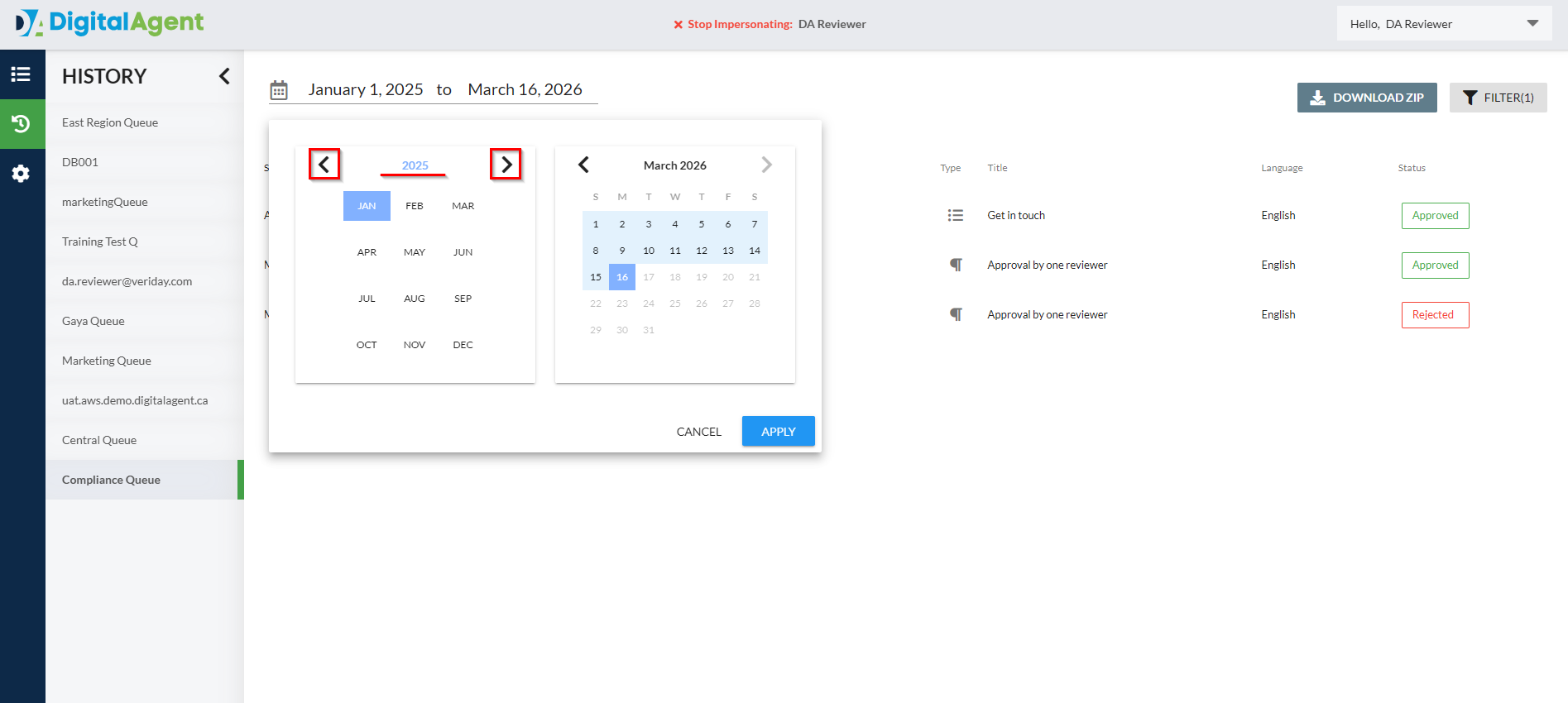
3. Select the start date in the left calendar and the end date in the right calendar.
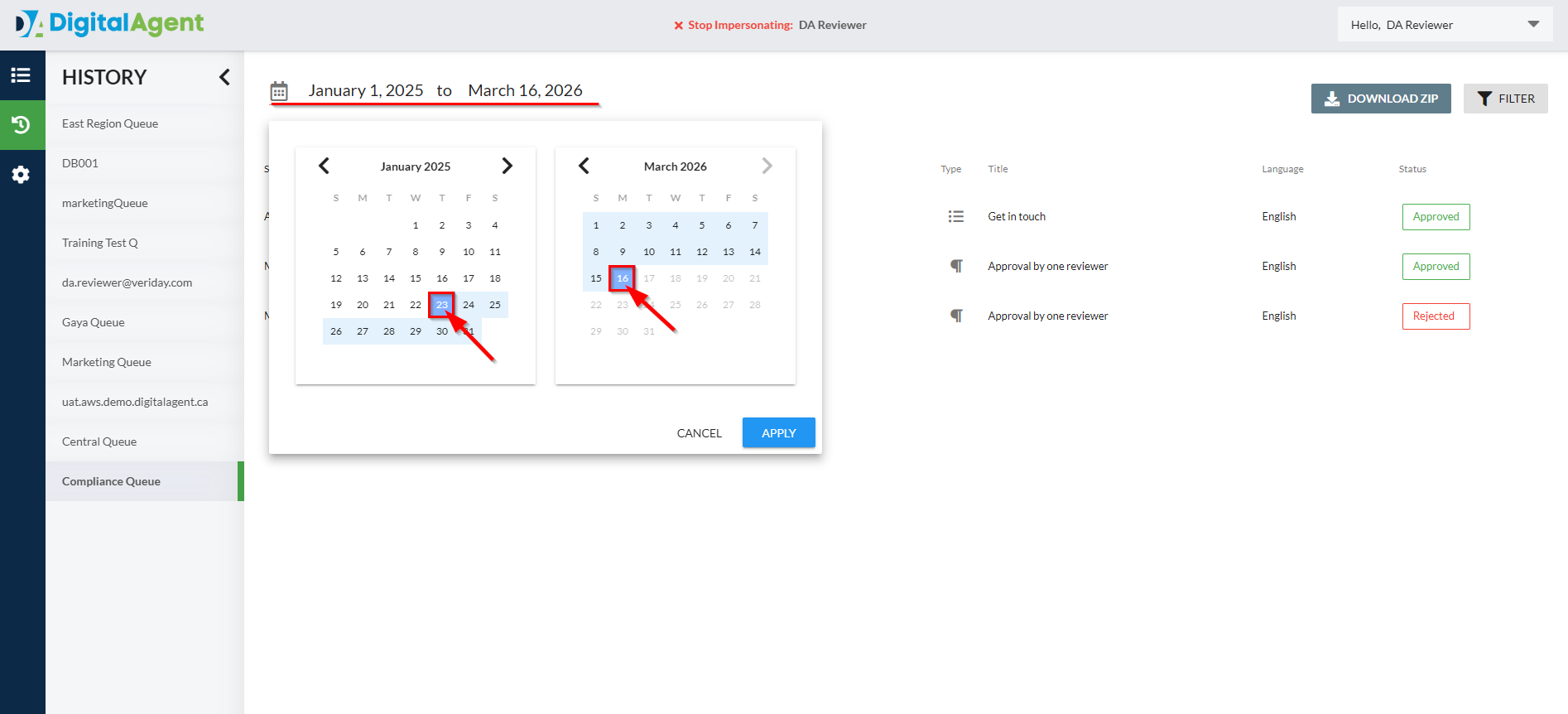
4. Click Apply to update the view with your selected date range.
Viewing Historical Submissions
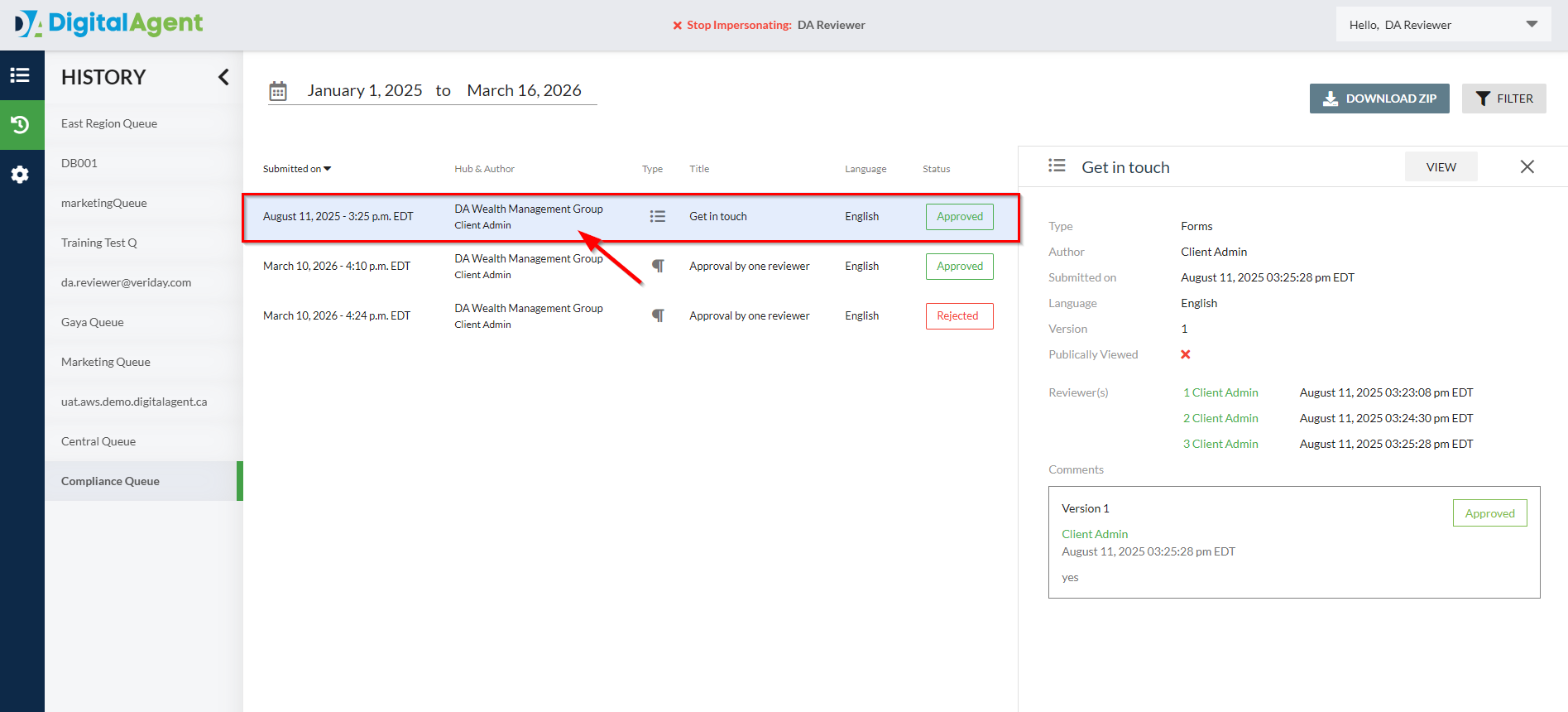
1. Select an entry from the list to view the submission details. This includes information such as the reviewers who approved or rejected the submission, as well as any comments they may have left from rejections or approve all actions.
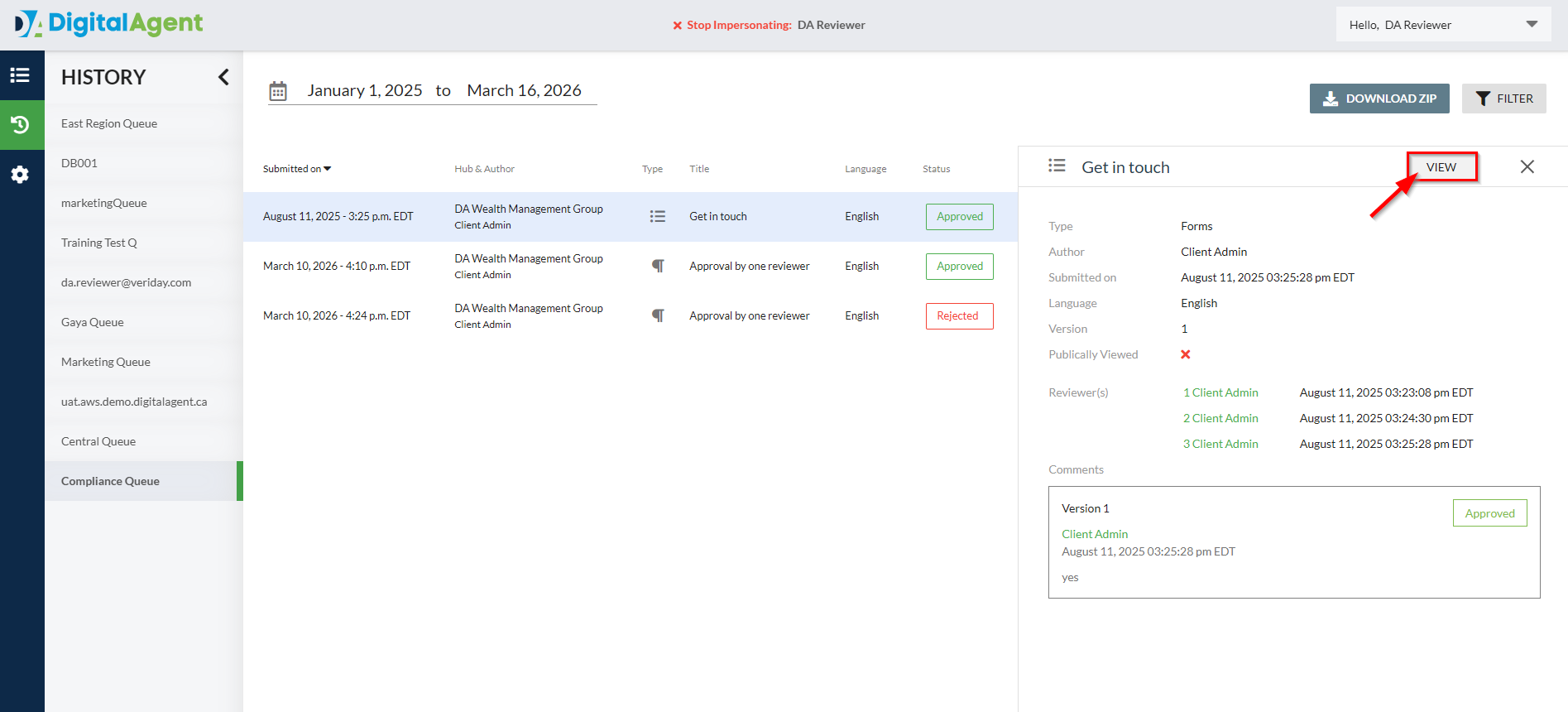
2. To see the submission contents, select View.
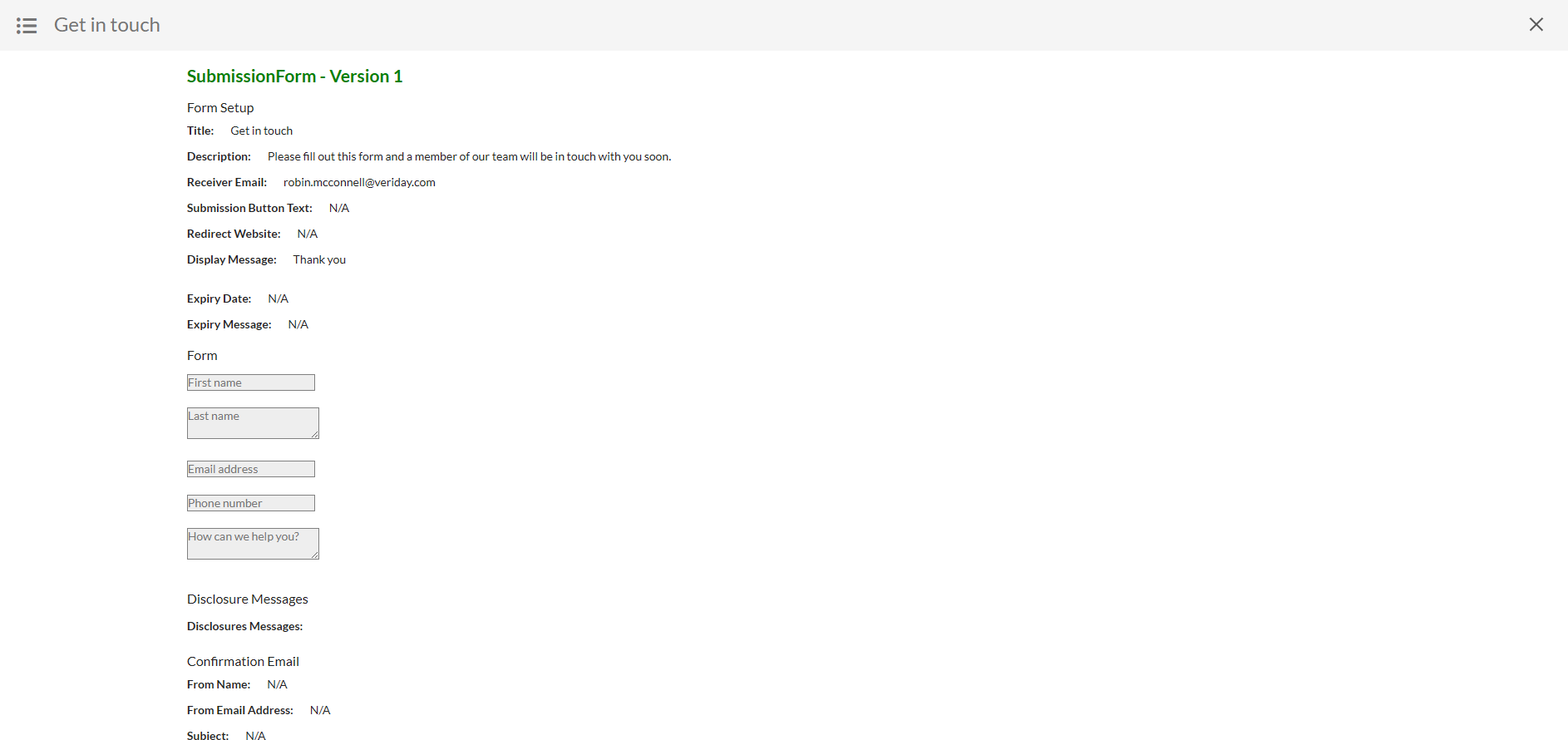
3. In the View window, you can review the details of the content that was submitted. Select the X in the top-right corner to return to the previous screen.
Filtering Your View
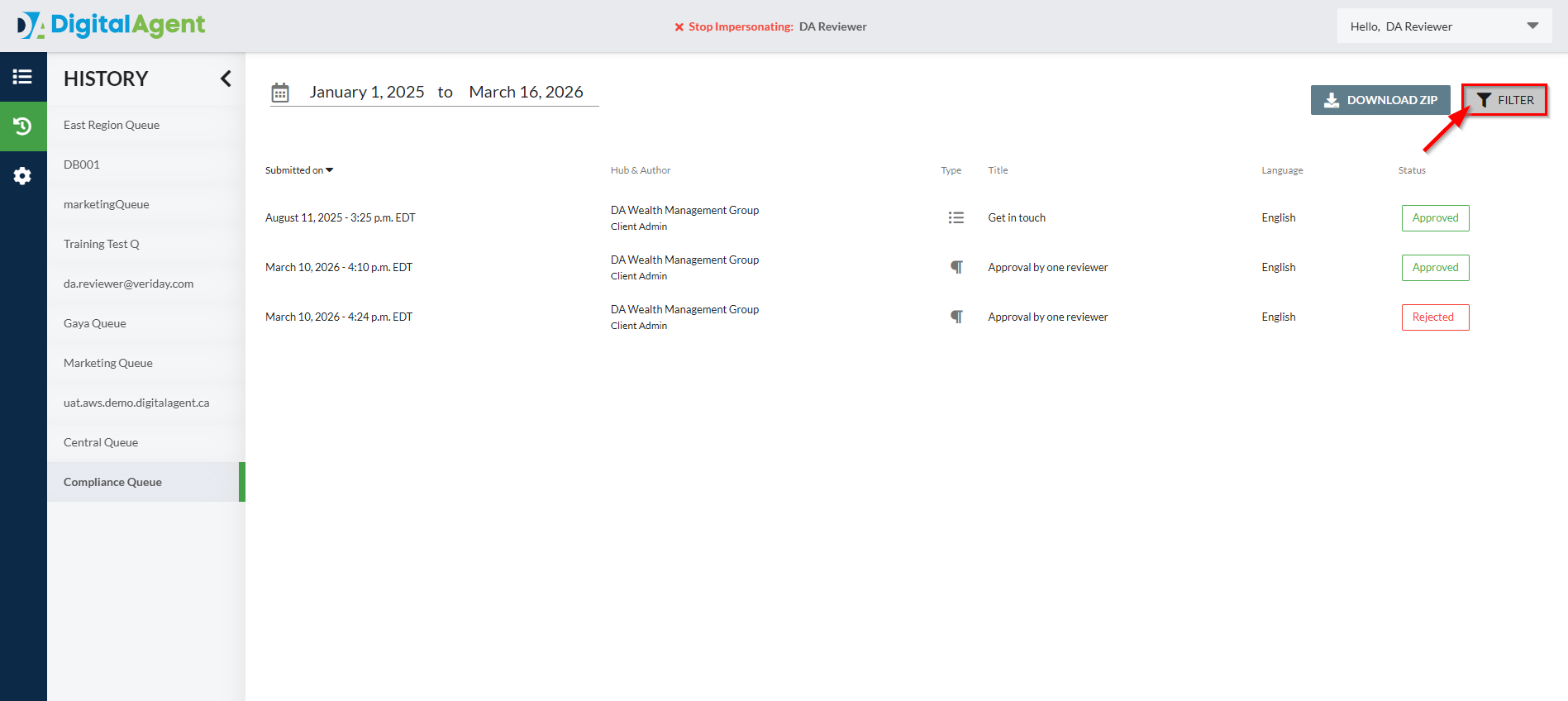
1. To apply filters, select the Filter button to open the Filter panel.
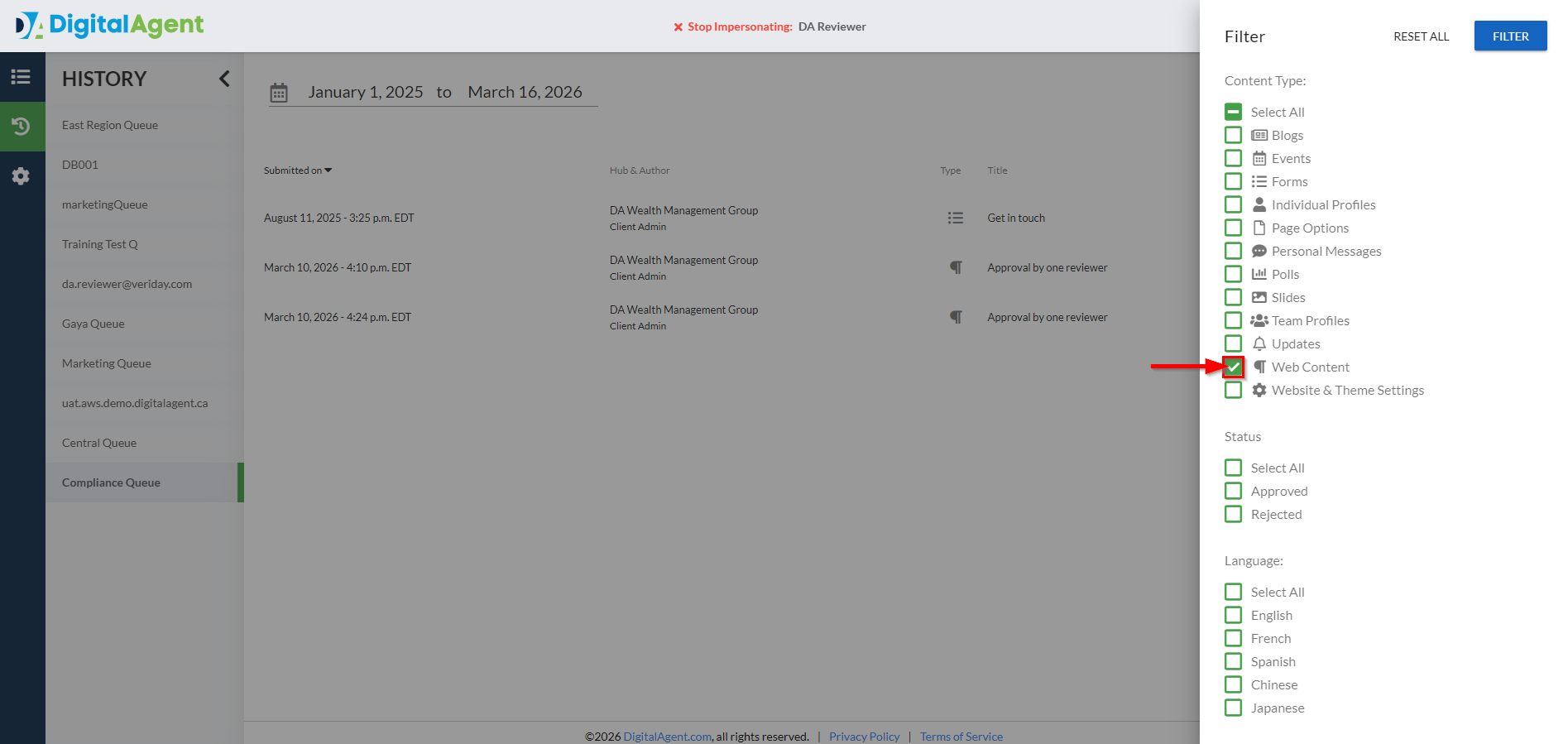
2. Choose any combination of Content Type, Status, or Language to display only submissions that meet your selected criteria.
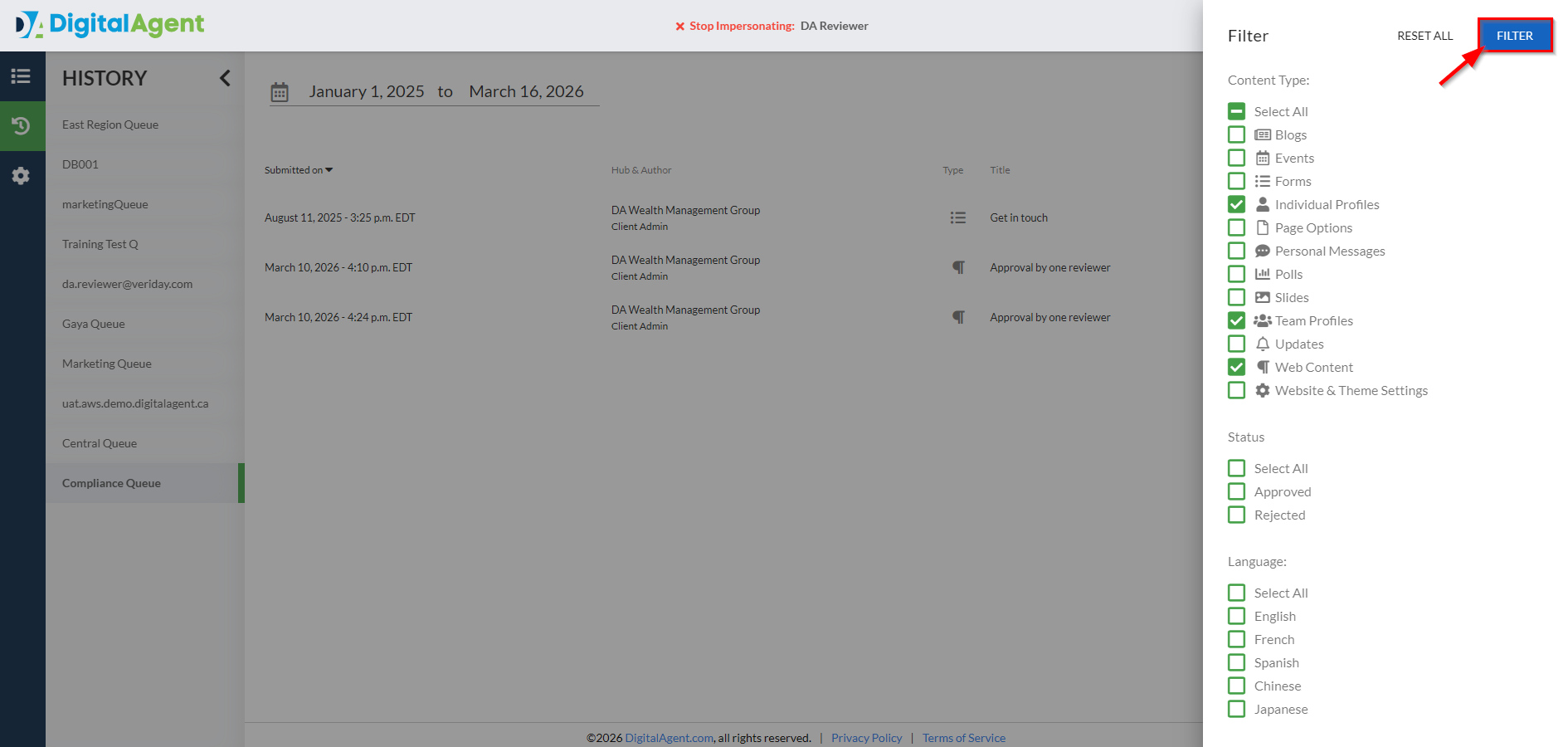
3. When finished, click the Filter button to apply your filters to your current view.
Download Compliance History
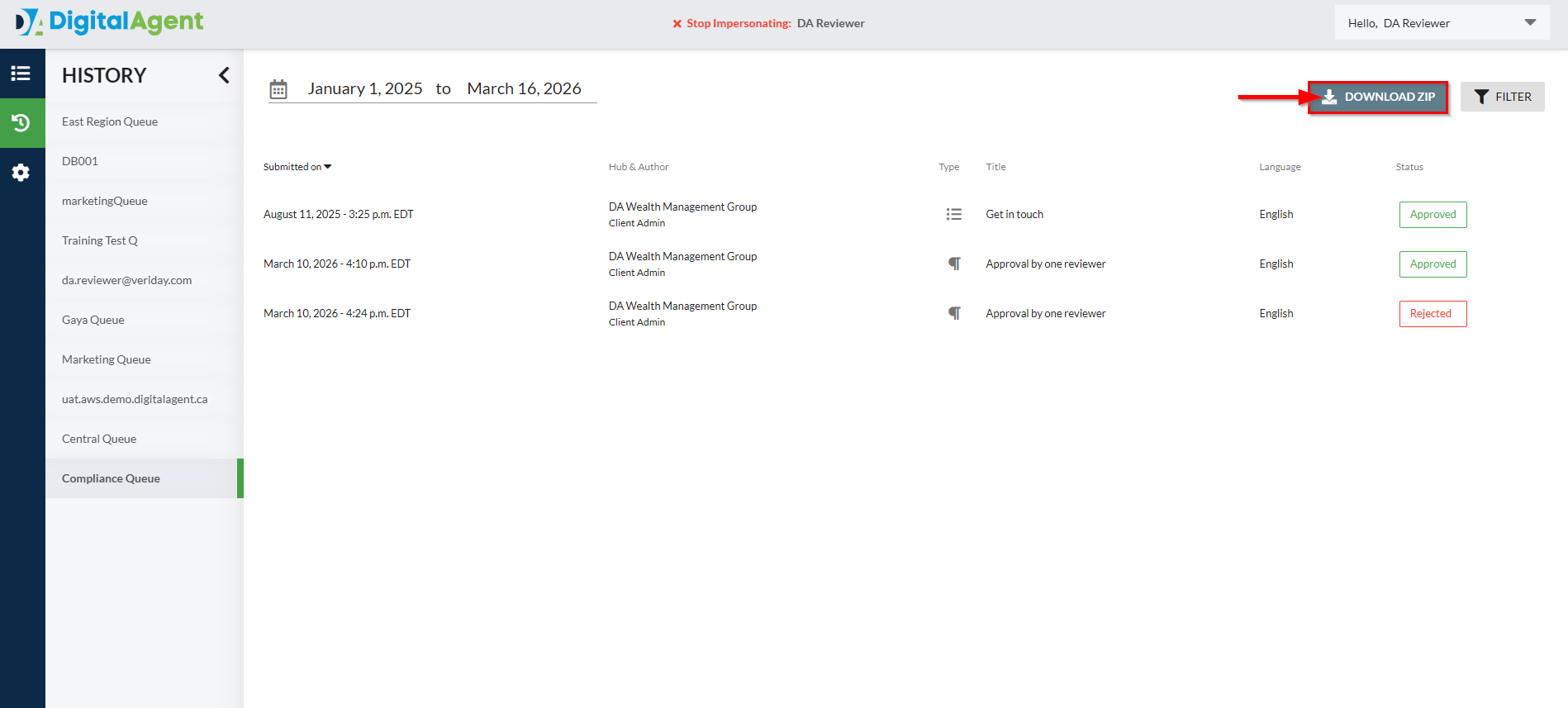
1. With your date range and filters applied, you can download a .csv file of the historical submissions currently displayed by selecting Download ZIP.
2. In the Confirm Download dialogue window, click Download.
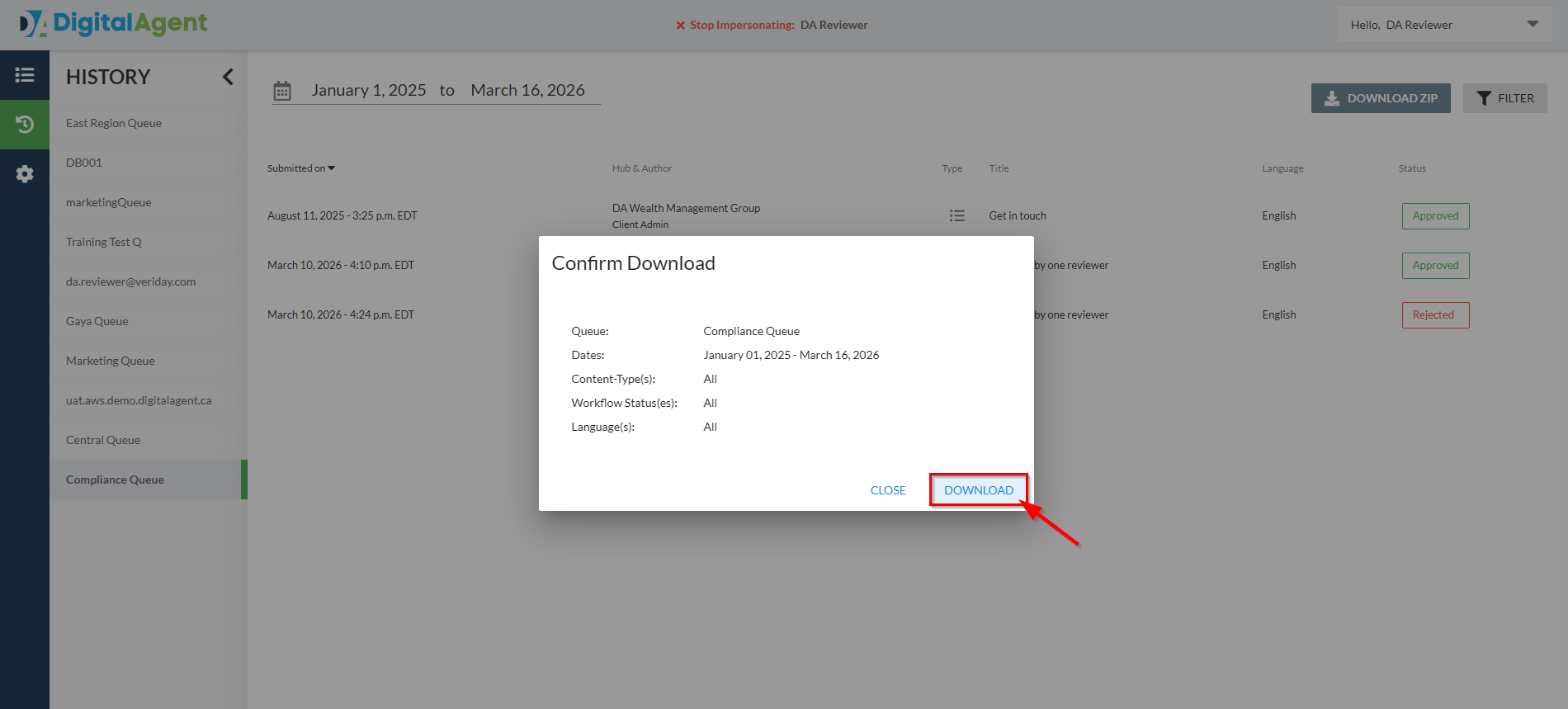
3. A .zip file containing .csv files of each submission type will be downloaded to your computer.
Note: If you're downloading a large number of submissions, it may take a few minutes for the download to start.
Was this article helpful?
That’s Great!
Thank you for your feedback
Sorry! We couldn't be helpful
Thank you for your feedback
Feedback sent
We appreciate your effort and will try to fix the article