⚠️ Important: If your environment is not configured with Testimonials View, it will not be available in the Updates widget.
Creating a Testimonial Update
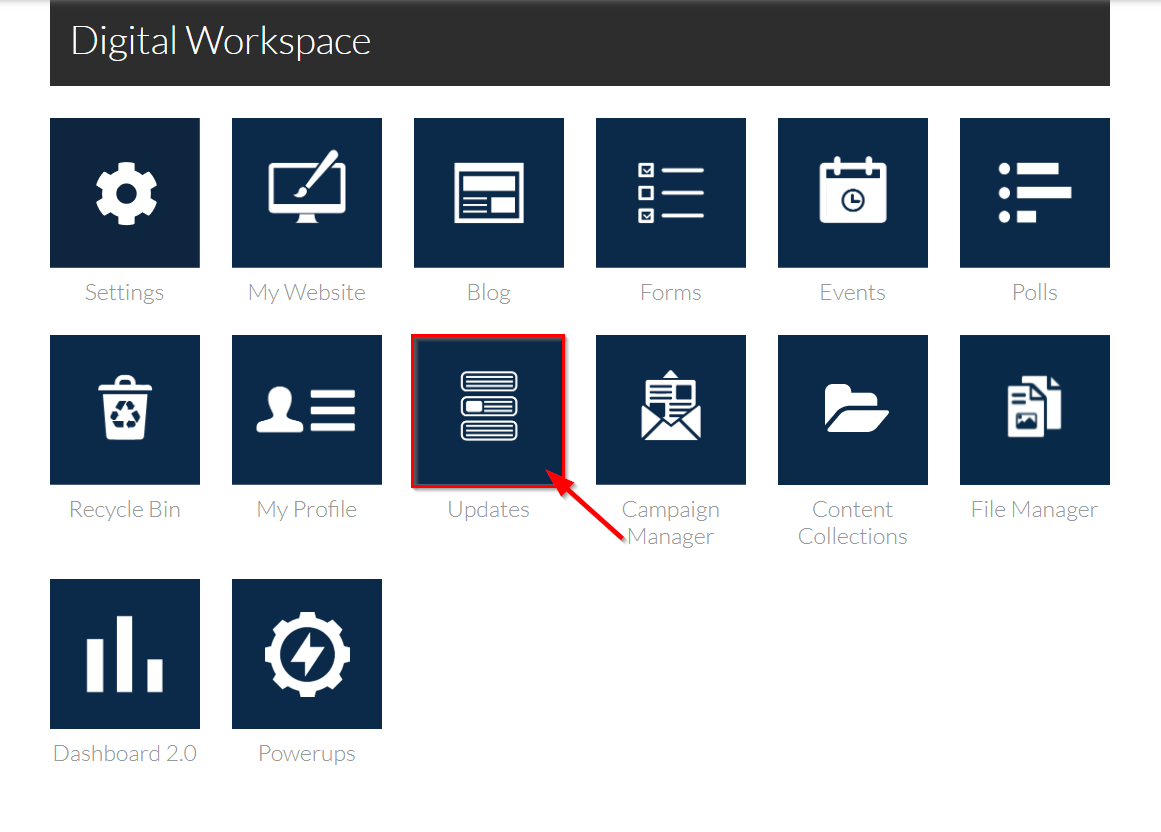
1. Navigate to Updates.
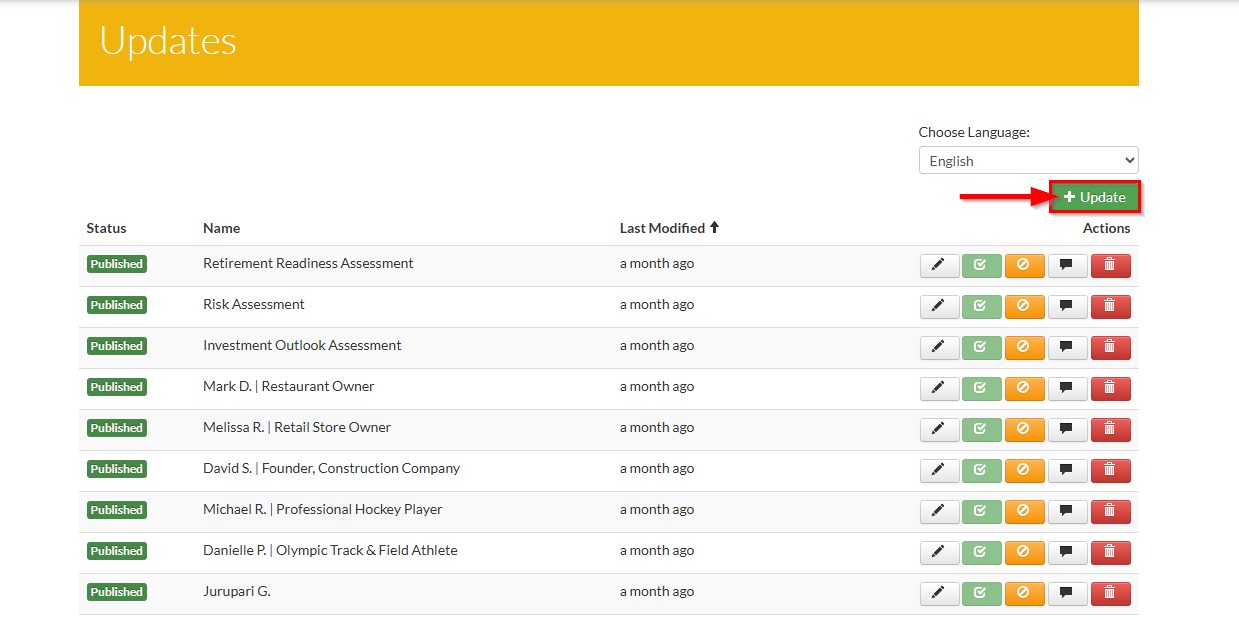
2. Click on +Update to open the Updates Editor.
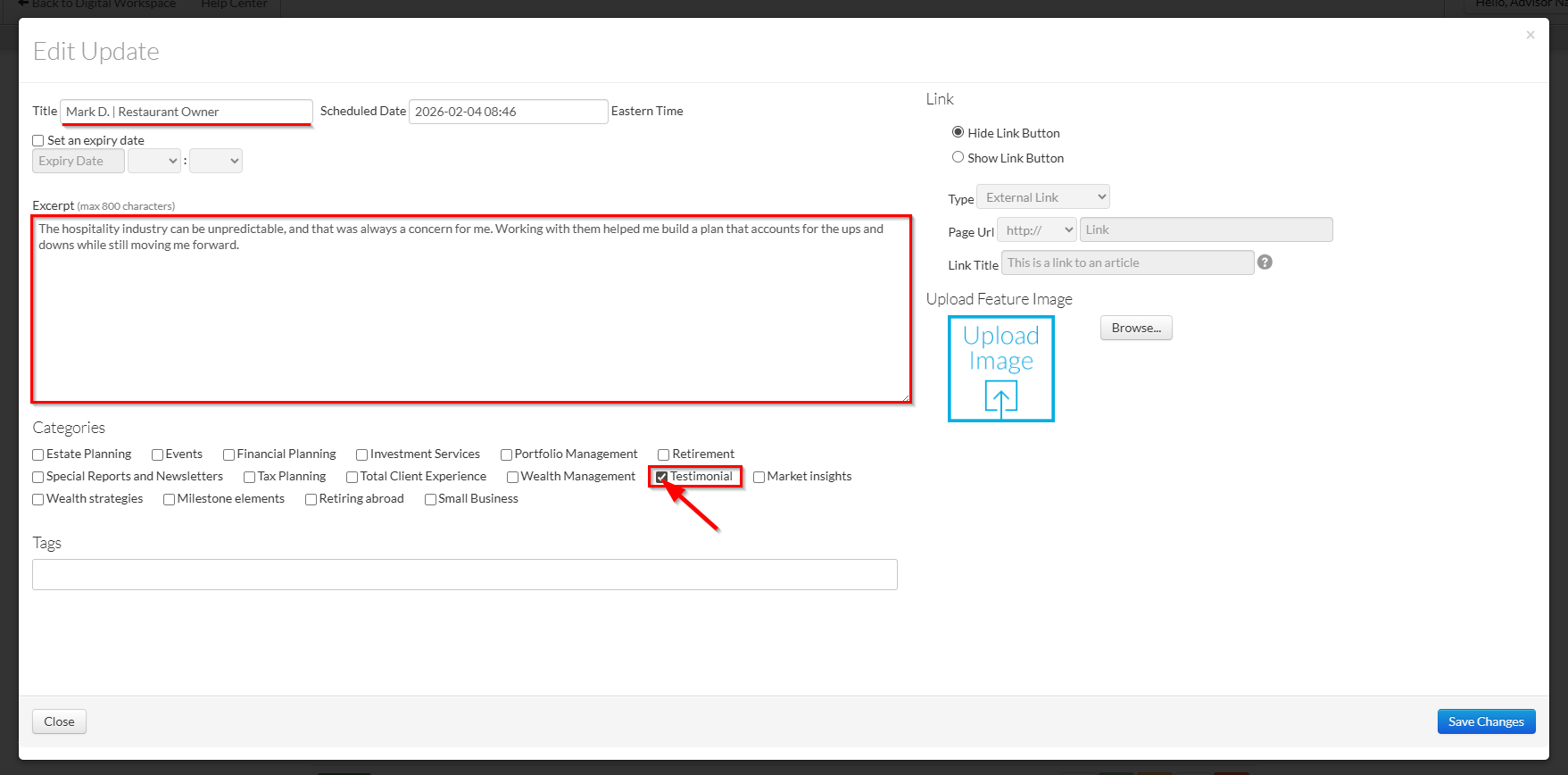
3. Add in your testimonial information:
- Title: Name of individual(s) providing the testimonial
- Excerpt: The testimonial contents
- Categories: "Testimonial"
Note: The "Testimonial" category is not required, but is recommend.
- Adding a category allows an Update to appear whenever that category is selected in the Updates web gadget.
- As long as your testimonials are captured under the same category, or are all "Uncategorized", you can configure them to display on the web page.
- Think of a category like a checkbox. Selecting more than one category will display the Update whenever any of those categories are selected.
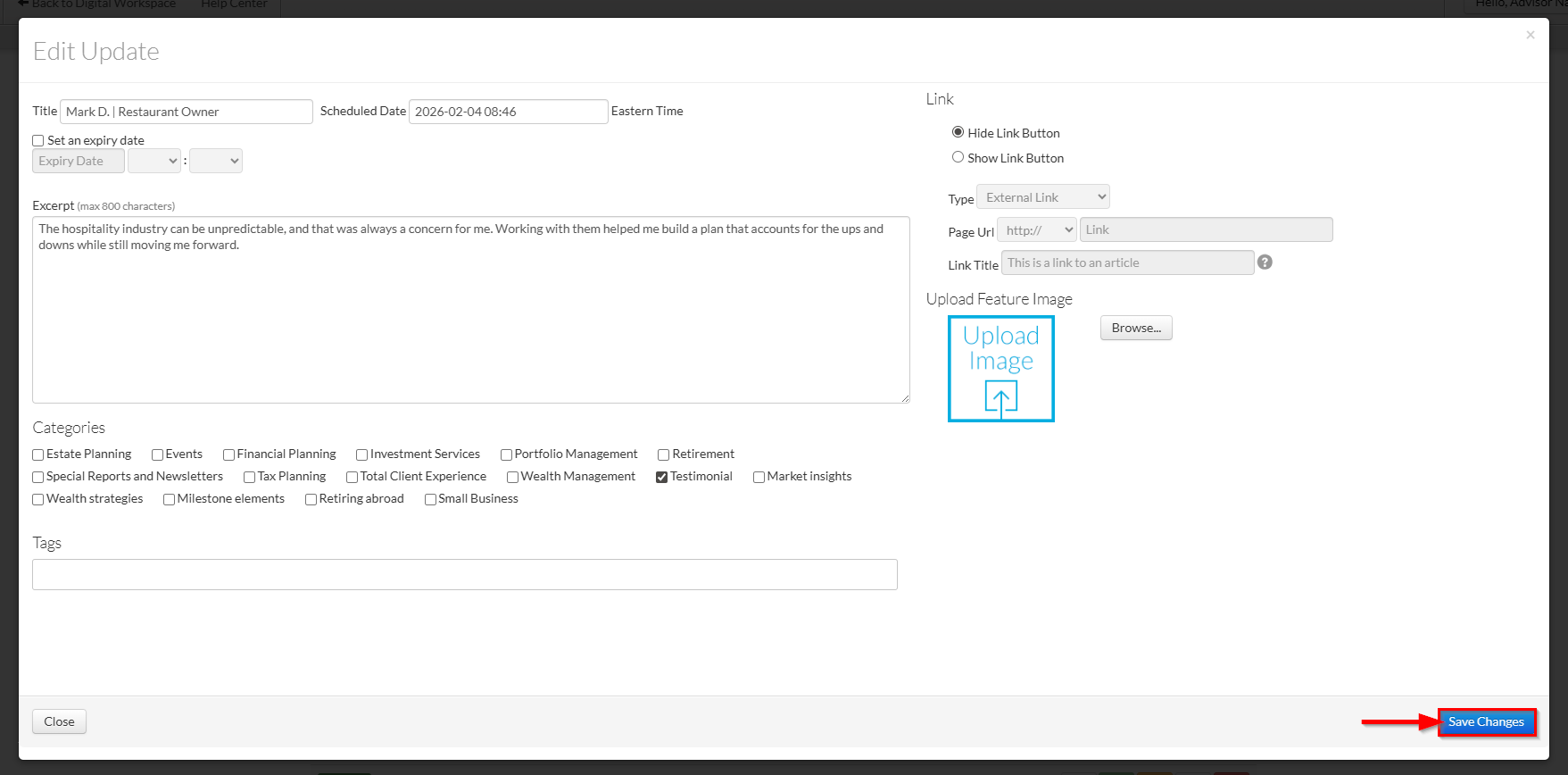
4. When finished, select Save Changes to save your Testimonial Update in a draft state.
5. Submit your Update for approval. Note: Only Approved updates will display on your draft site.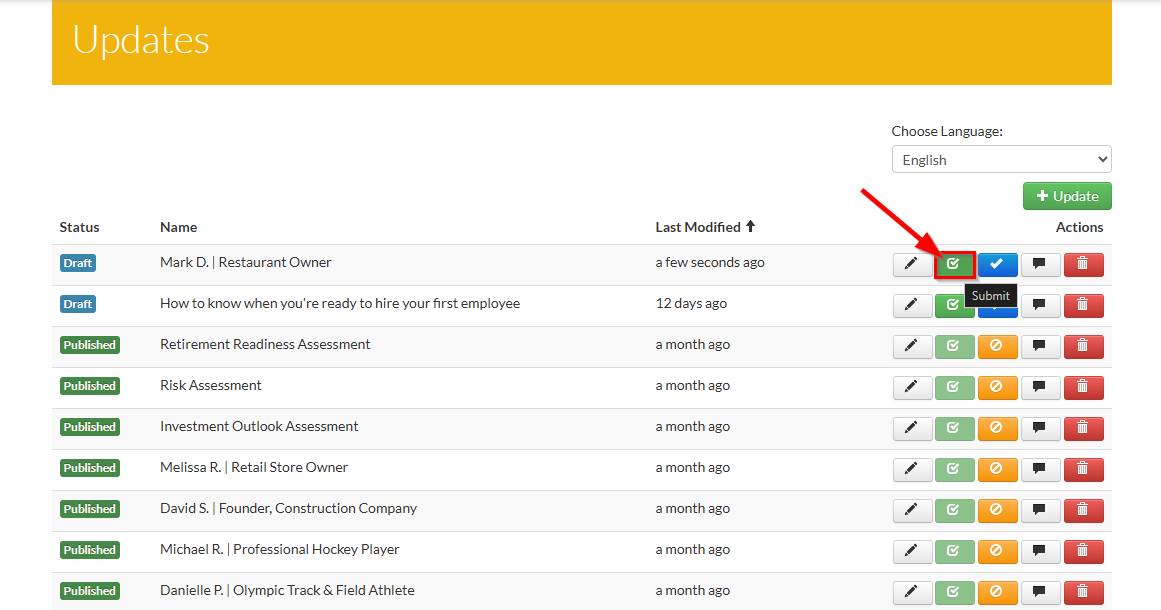
Displaying Your Testimonials
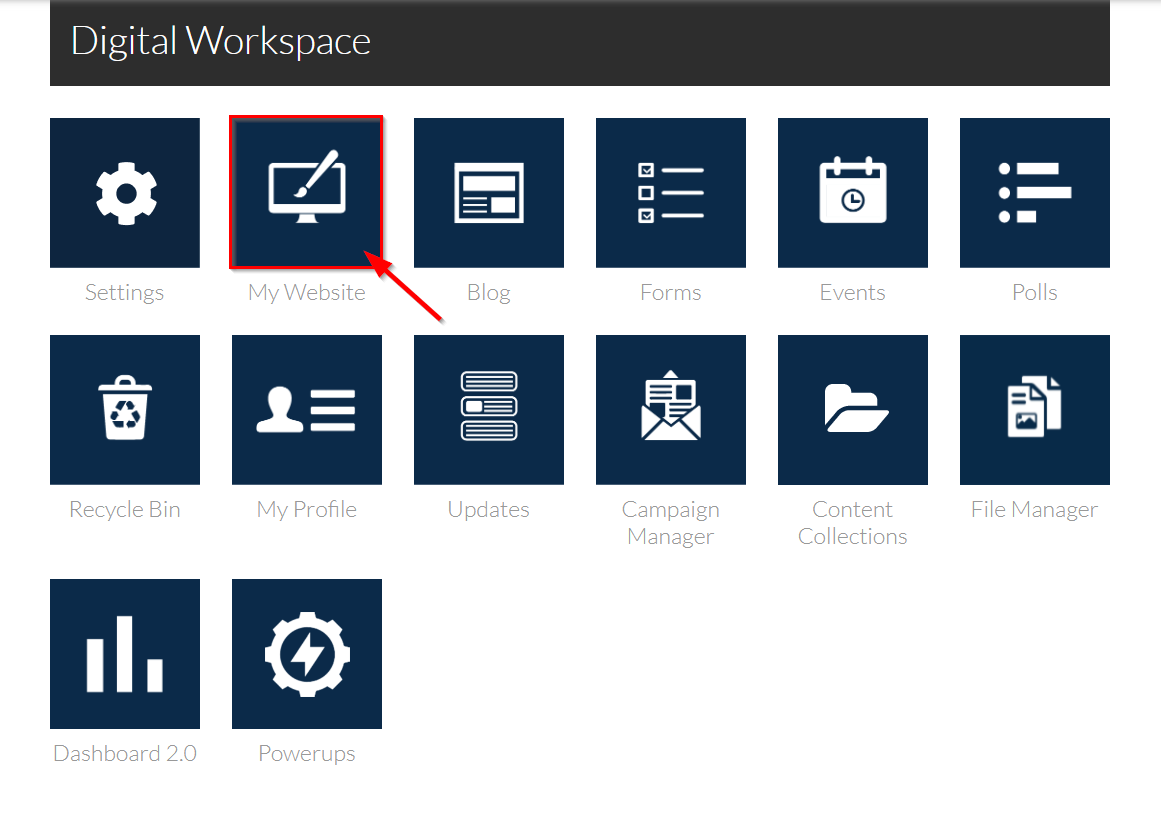
1. From the Digital Workspace, select My Website. Navigate to the page that you would like to display your Updates on.
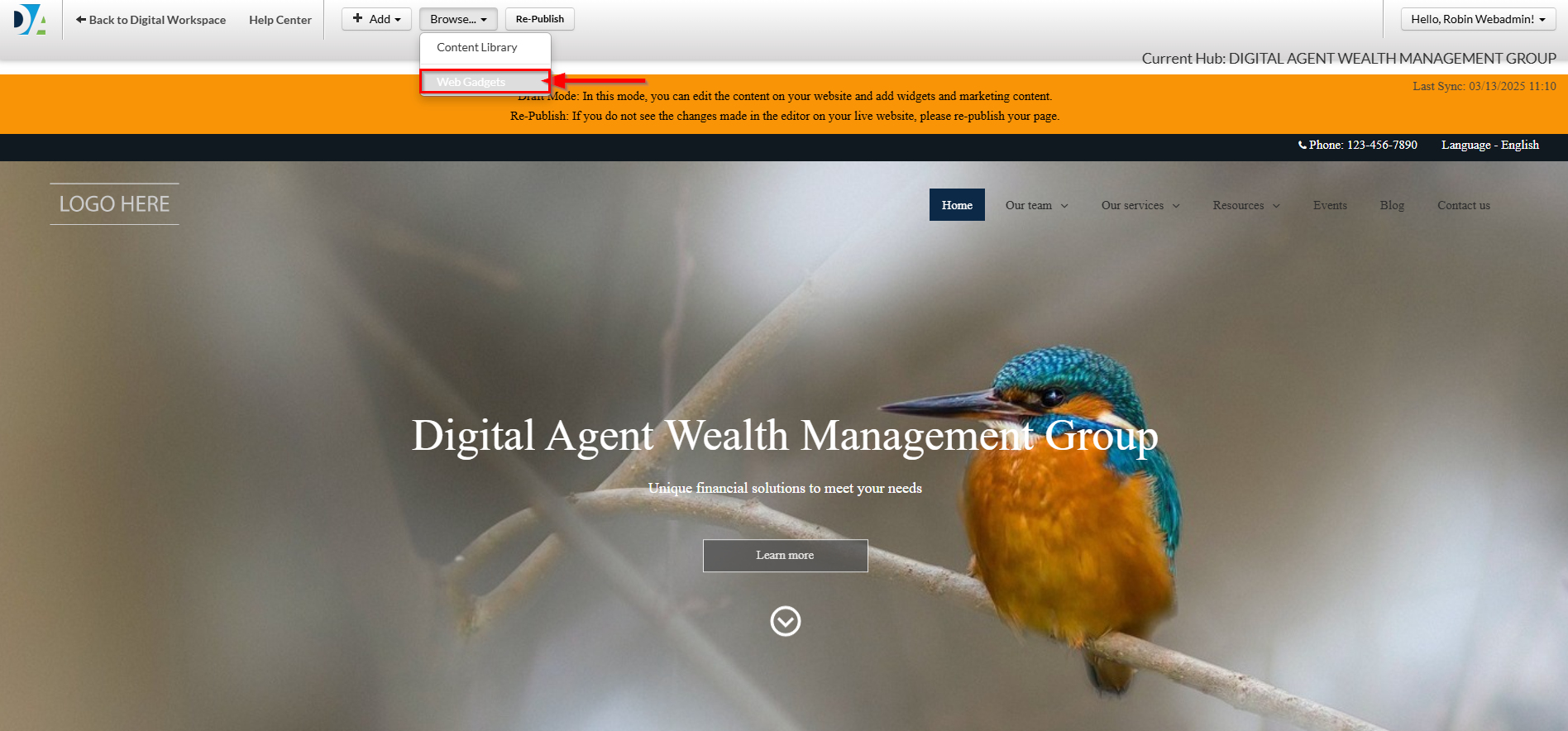
2. Click on Browse… and select Web Gadget from the drop-down menu.
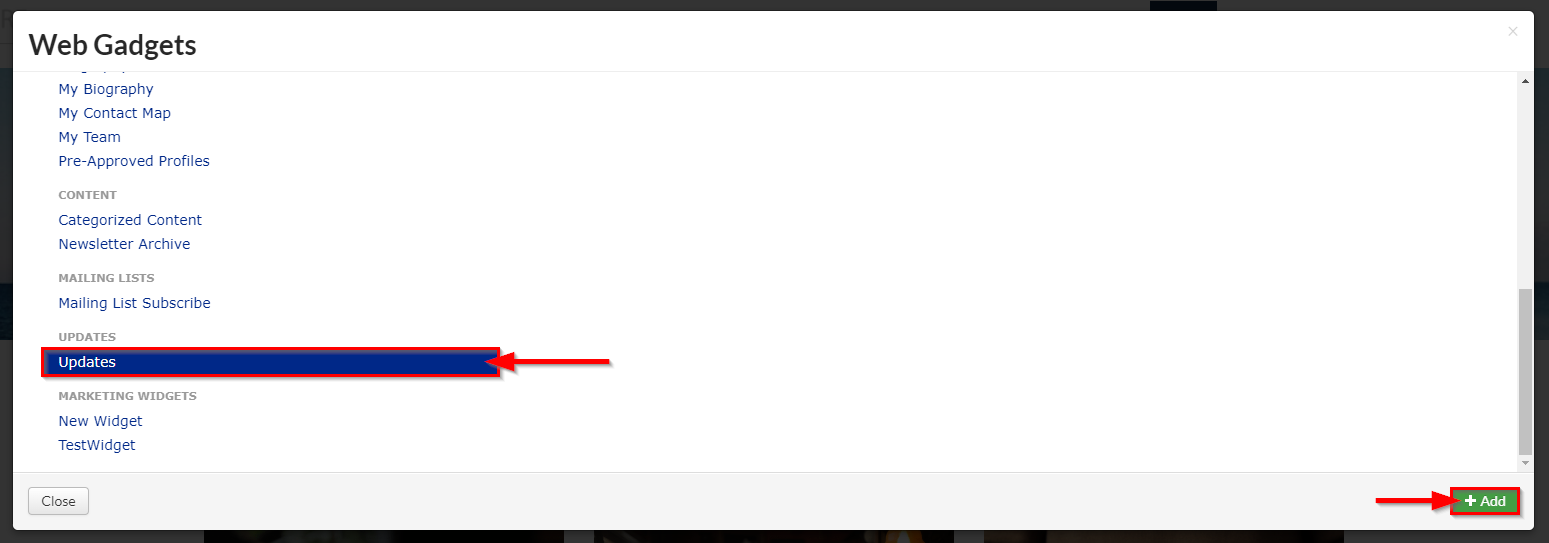
3. Find the Updates gadget in the click +Add to add it to your page, just below the banner.
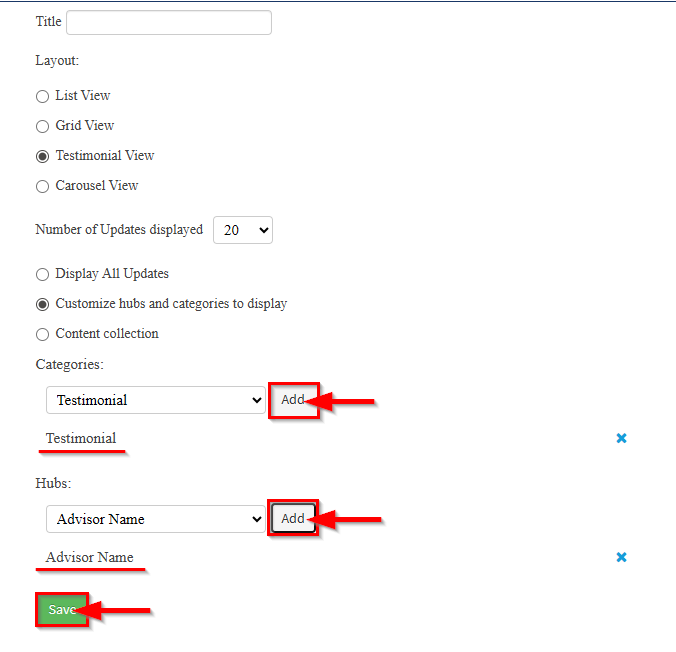
4. Configure the Updates web gadget:
- Layout: Testimonial View
- Number of Updates: The maximum number of Updates to display.
- Customize hubs and categories to display: Allows you to select the Categories and the specific Hub you’d like to display your Updates from.
- Categories: Testimonial (or the category you chose for your testimonials).
- Hub: [Your Hub]
When you're finished, click Save.
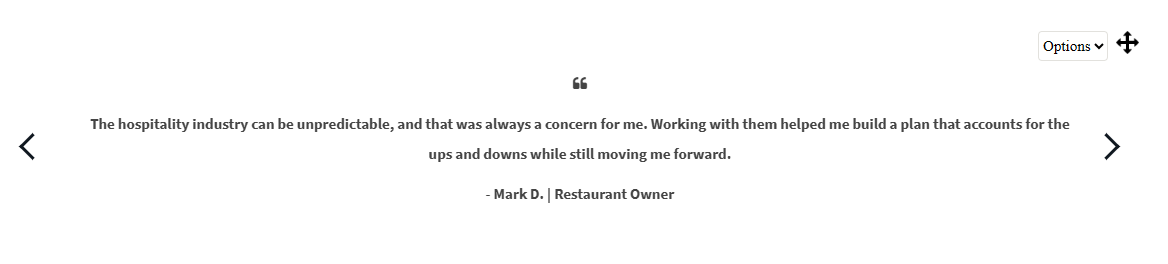
6. Your testimonial updates will display on your site through the Updates gadget.
Displaying Your Testimonials Using Content Collections
Alternatively, if your environment uses Content Collections, you may follow this procedure instead. See: Content Collections
Was this article helpful?
That’s Great!
Thank you for your feedback
Sorry! We couldn't be helpful
Thank you for your feedback
Feedback sent
We appreciate your effort and will try to fix the article