Disclosures may be added to most content types within DA (Content blocks, events, team member profiles, etc).
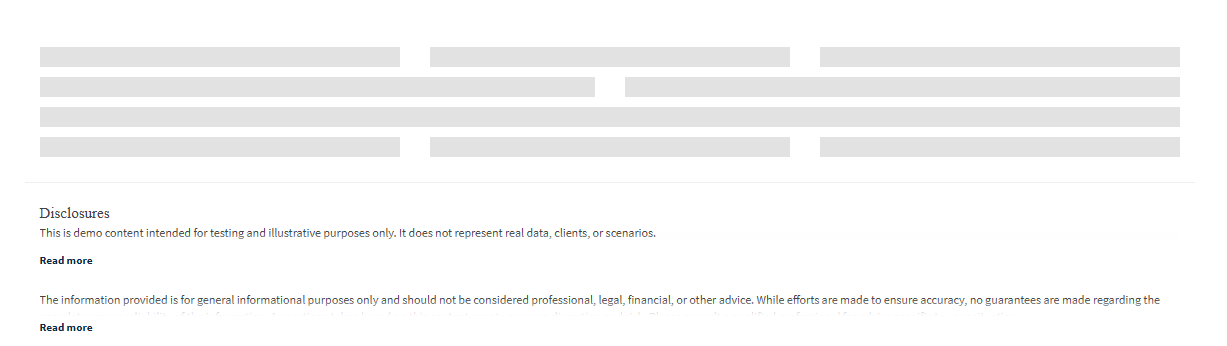
When a disclosure has been added to content, that disclosure will automatically display at the bottom of the page where that content has been added.
Adding a Disclosure Message to a Content Block
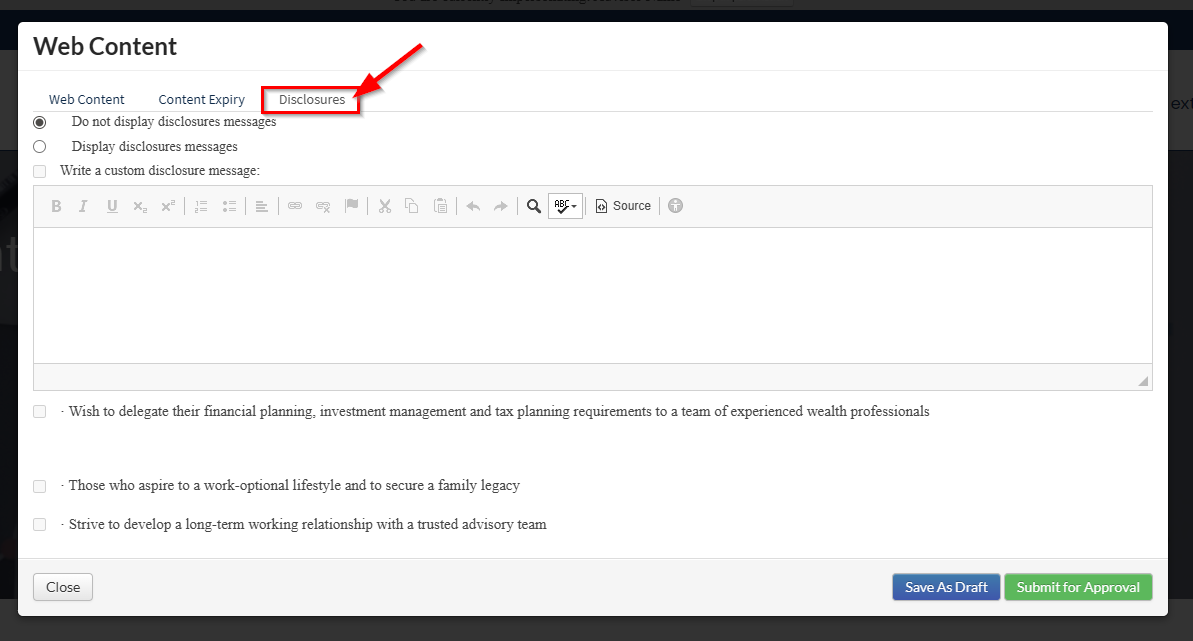
When creating your content, a Disclosures section or Disclosures tab will be available.
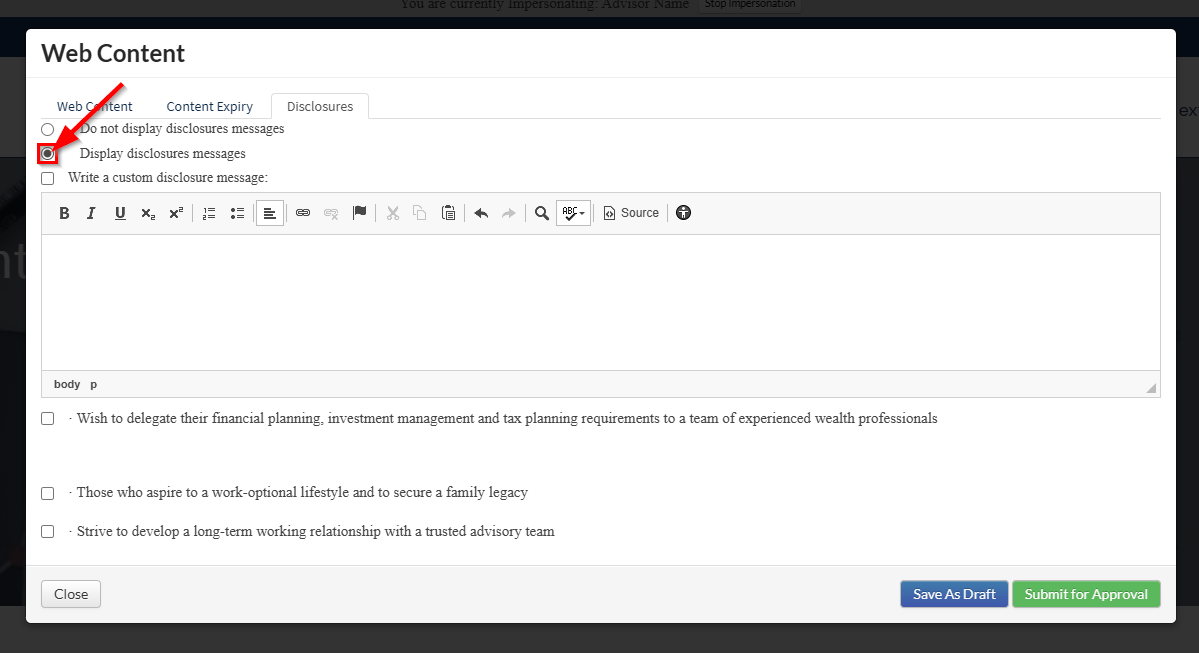
1. Select Display disclosure messages to enable disclosures.
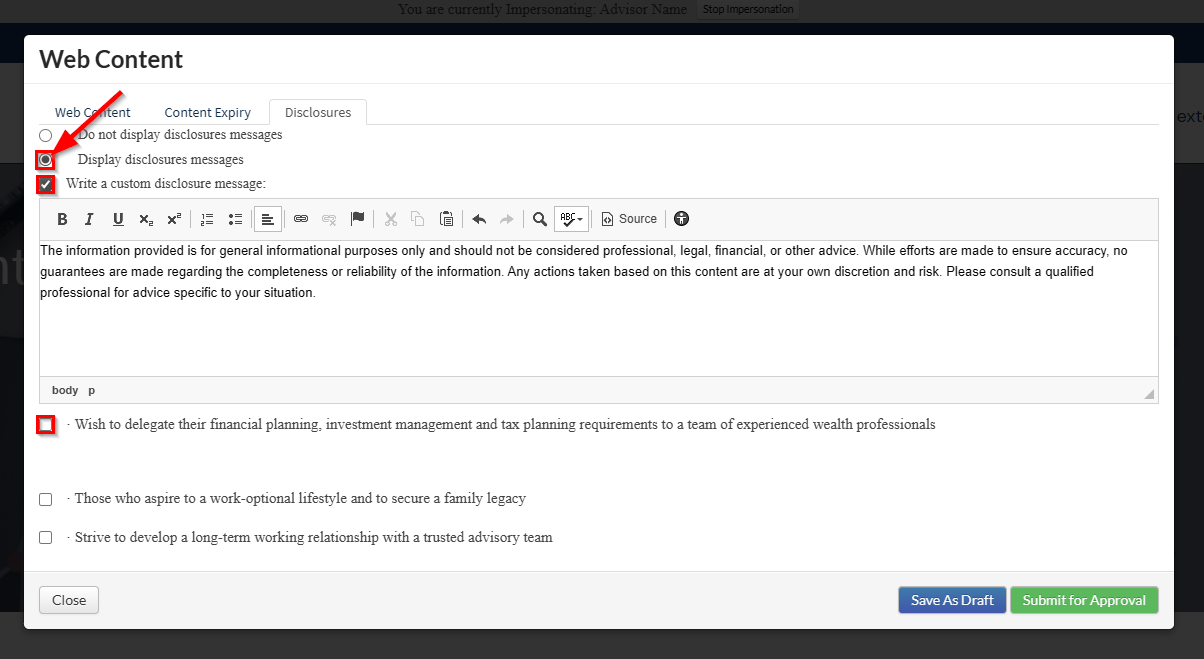
2. When choosing to add and displaying disclosure messages there are two options:
- Custom disclosure message: Click this check box and write your custom disclosure in the text field.
- Select an existing (pre-approved) disclosure message: Below the custom disclosure field, click the check box beside the disclosure message you'd like to display.
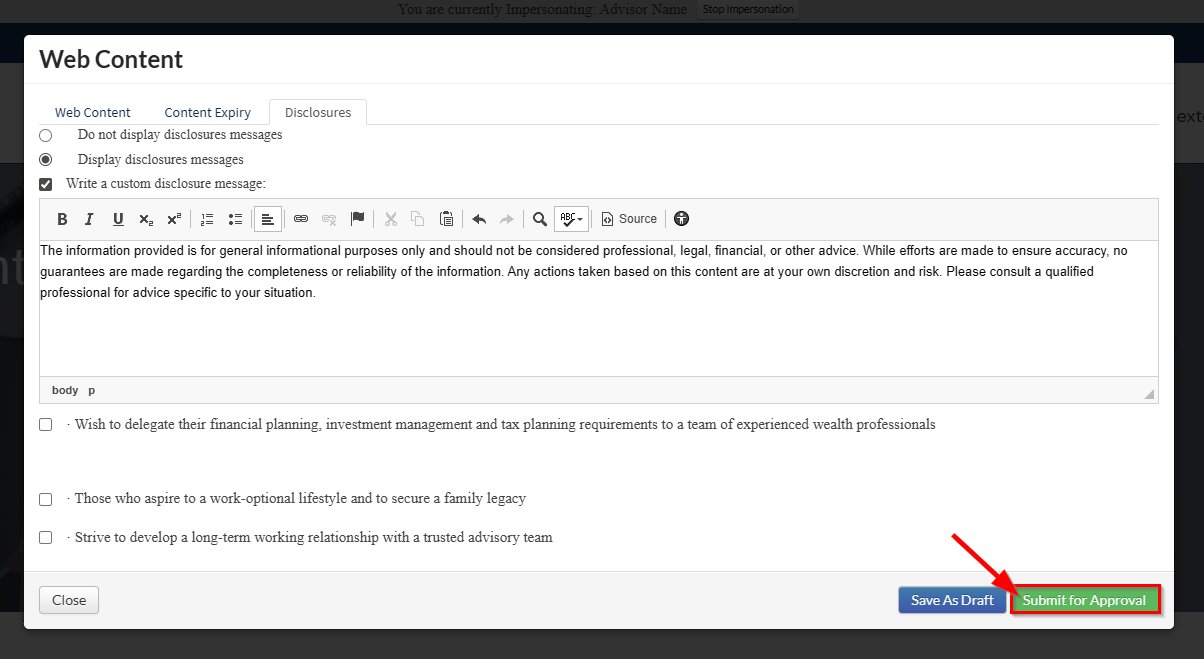
3. Select Save As Draft to preview your disclosure message on your web page, or Submit for Approval to submit it to Compliance for review.
⚠️ Important: You must refresh the page to see your new disclosure message.
4. After the page has been refreshed, your disclosure message should be visible at the bottom of the page.

Note: If you have multiple pieces of content on one page, all with their own disclosure message, each message will be displayed under a toggleable "Read more" section, showing all disclosures.
Was this article helpful?
That’s Great!
Thank you for your feedback
Sorry! We couldn't be helpful
Thank you for your feedback
Feedback sent
We appreciate your effort and will try to fix the article