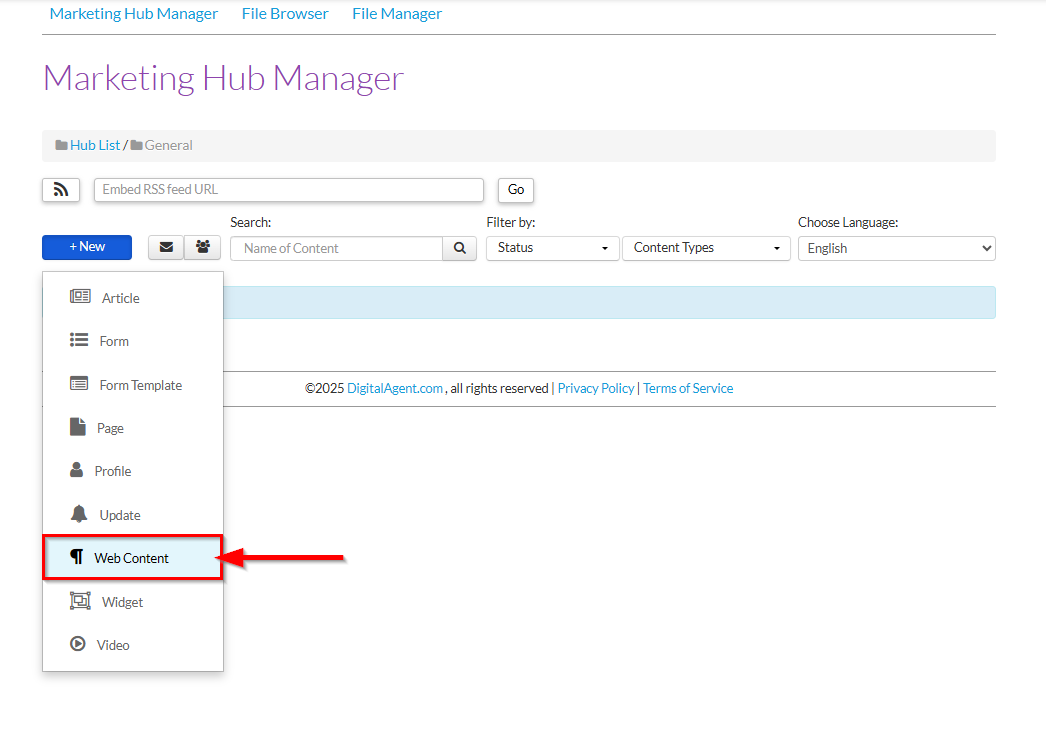
1. Within a Marketing Hub, click +New and select Web Content from the drop-down to open the Add New Web Content editor.
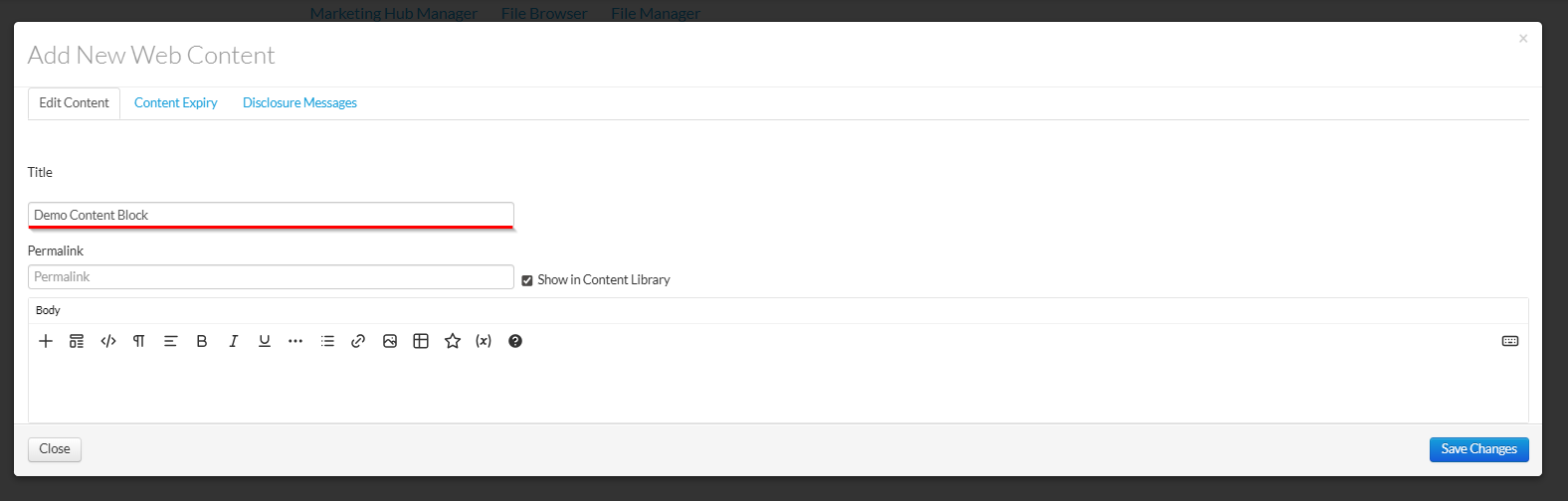
2. Add a name for the content block in the Title field.
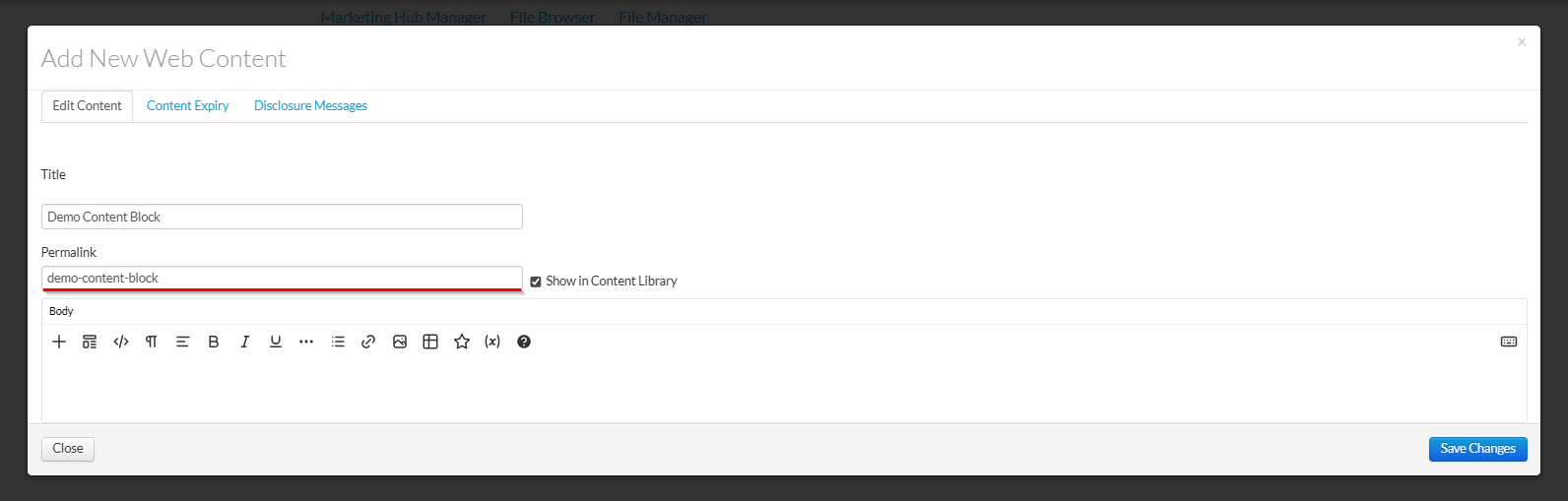
3. (Optional) Define a Permalink for the direct URL to the content. If left blank, one will be generated automatically.
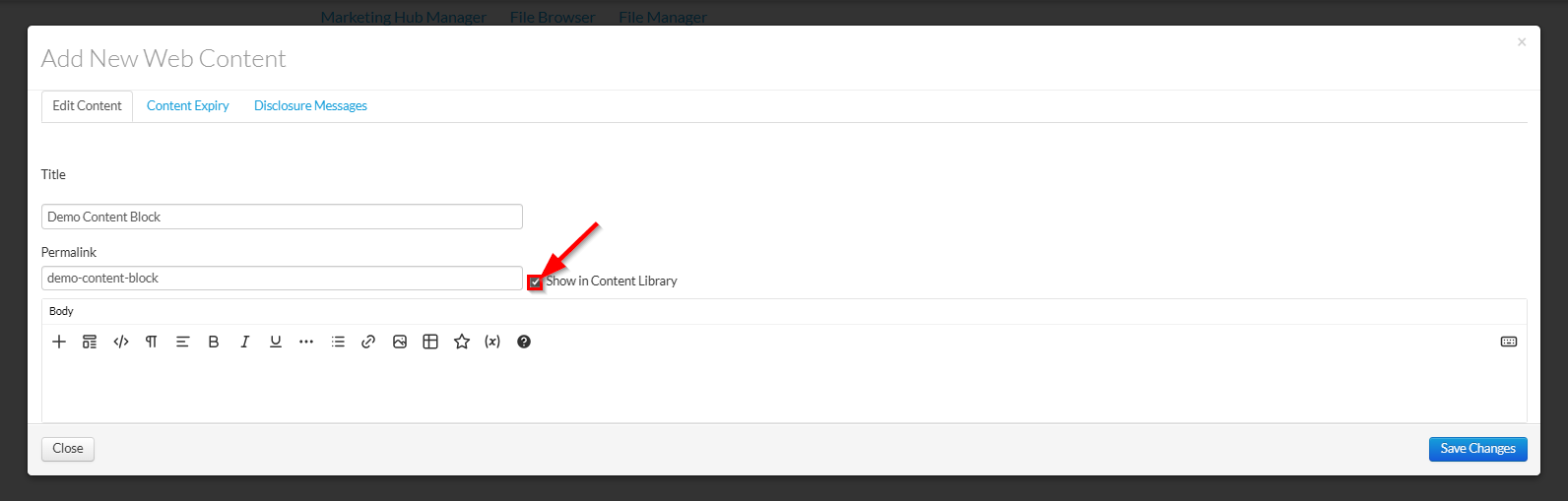
4. Use the Show in Content Library toggle to control content availability:
- ON: The content block can be independently added by Web Admin users with access to the Marketing Hub.
- OFF: The content block will not appear in the Content Library for advisors, but will remain accessible within Marketing HQ.
- This setting is useful for creating pre-approved pages while restricting the content from being reused elsewhere.
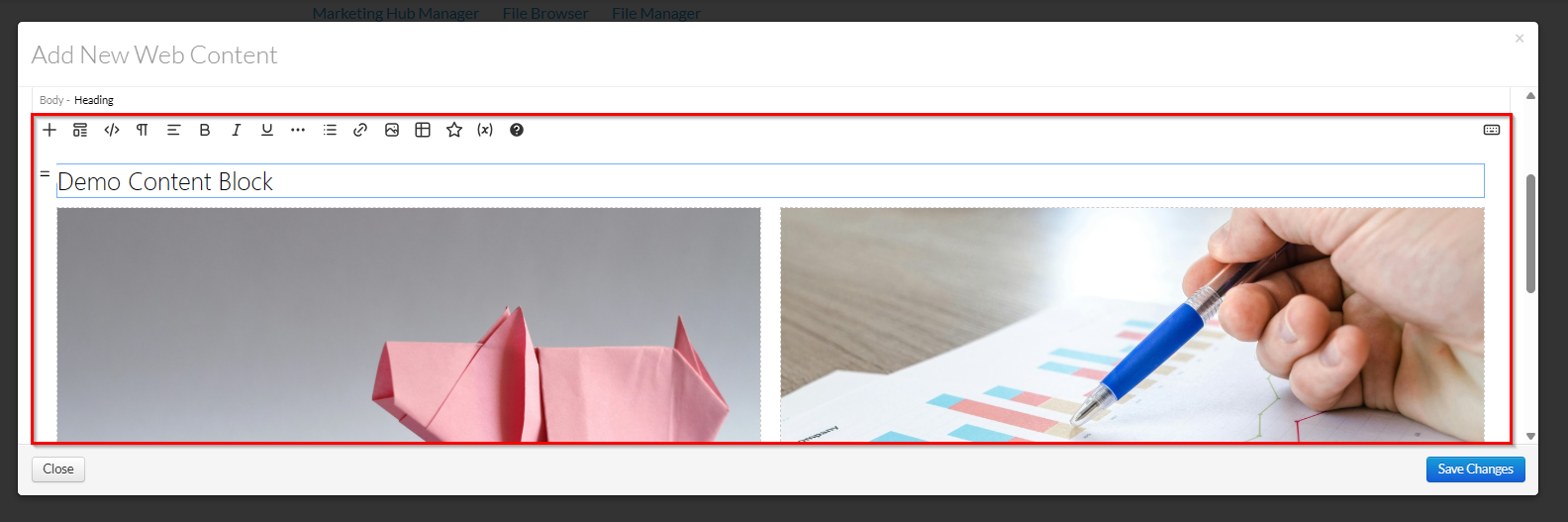
5. Use the editor to create your new pre-approved content block.
- For detailed editor functionality and instructions, refer to the Web Content Editor section of the Knowledge Base.
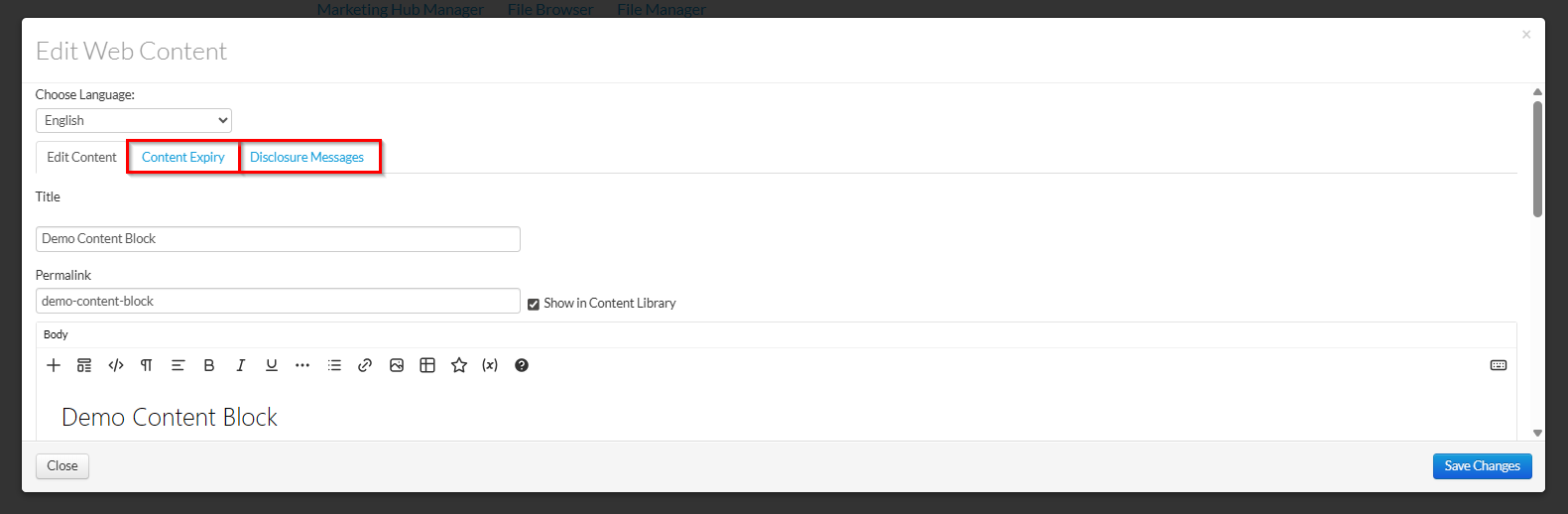
6. (Optional) You may also choose to add a content expiry time and/ or a disclosure message to the web content using the Content Expiry and Disclosures tabs.
- Content Expiry: Automatically removes the content from advisor hubs after the selected expiry date and replaces it with a prompt on the draft site.
- Disclosures: Automatically adds configured disclosures to the disclosure section of any page where the content is used.
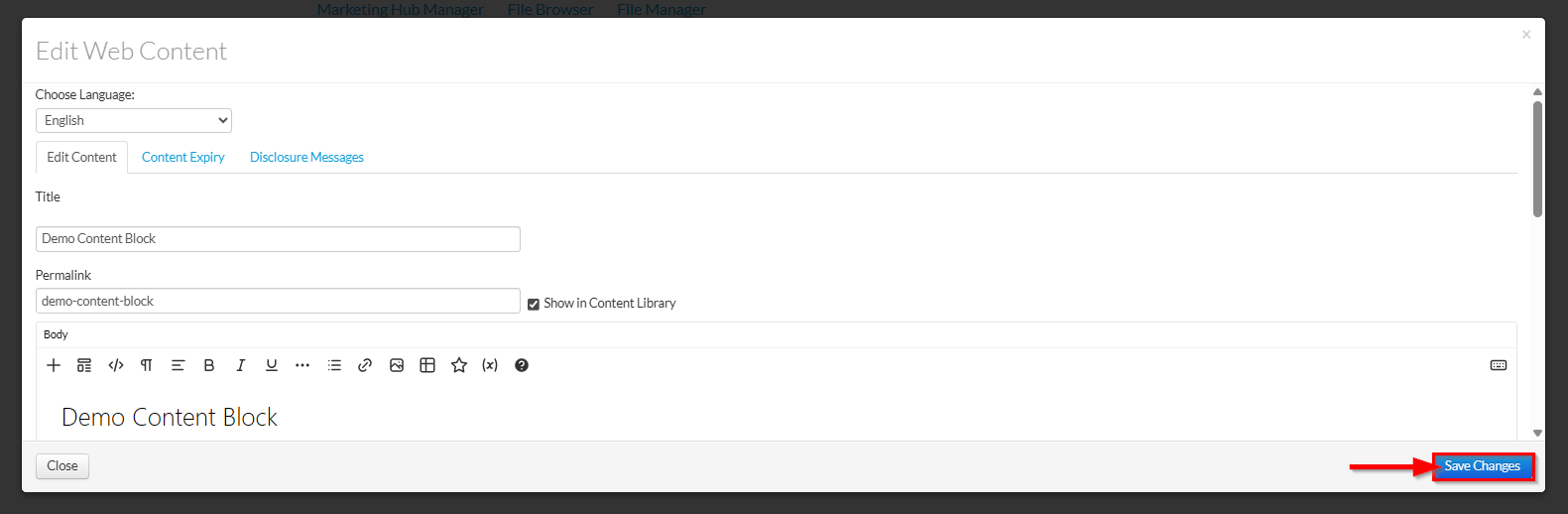
7. Click Save Changes to save your content block to the Marketing Hub.
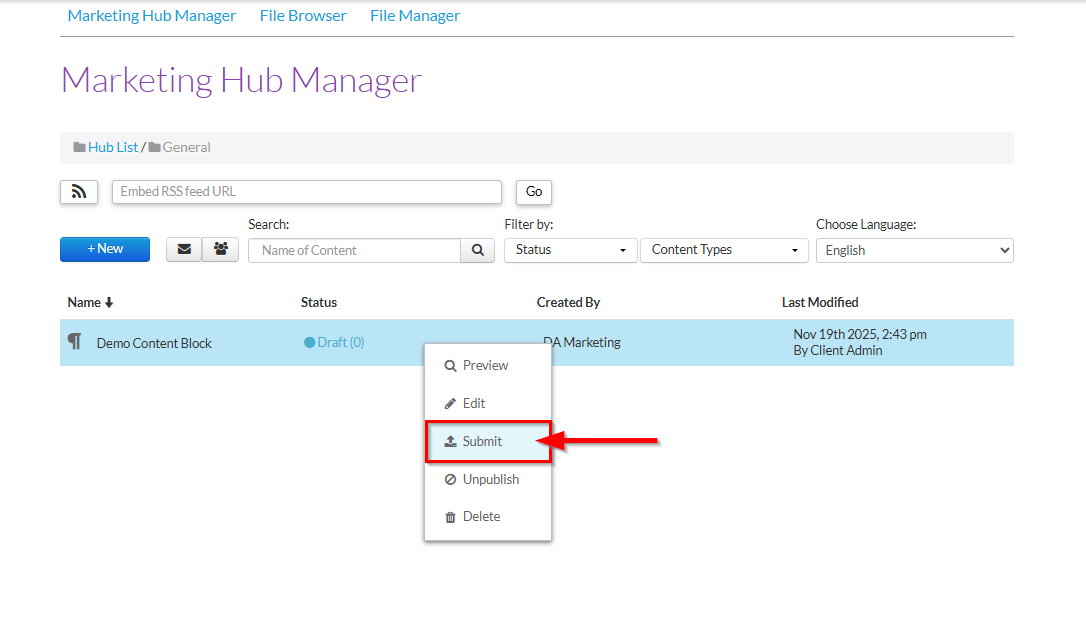
8. By default, your new content will be saved as a Draft.
To publish your content and make it available for use as pre-approved material, right-click the content and select Submit.
- If your Marketing HQ is connected to a compliance queue, the content will be submitted for approval.
- If your Marketing HQ is not connected to a compliance queue, it will be automatically published.
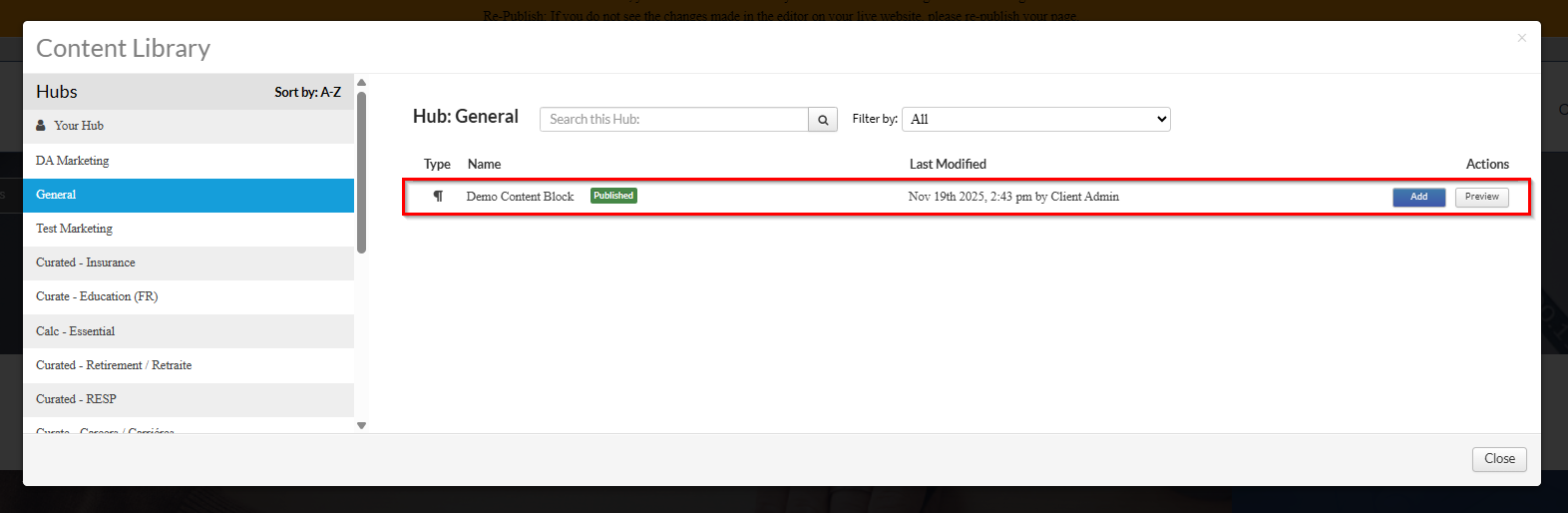
9. If Show in Content Library was enabled, the content block can now be added to advisor websites with access to the Marketing Hub.
Was this article helpful?
That’s Great!
Thank you for your feedback
Sorry! We couldn't be helpful
Thank you for your feedback
Feedback sent
We appreciate your effort and will try to fix the article